
Shared IP Pool Problems: 7 Warning Signs Your Deliverability Is Tanking
Learn the seven warning signs of shared IP pool contamination, including sudden inbox placement drops, bounce spikes, spam folder placement, blocklist entries, engagement declines, inconsistent campaign results, and SMTP rejection codes.
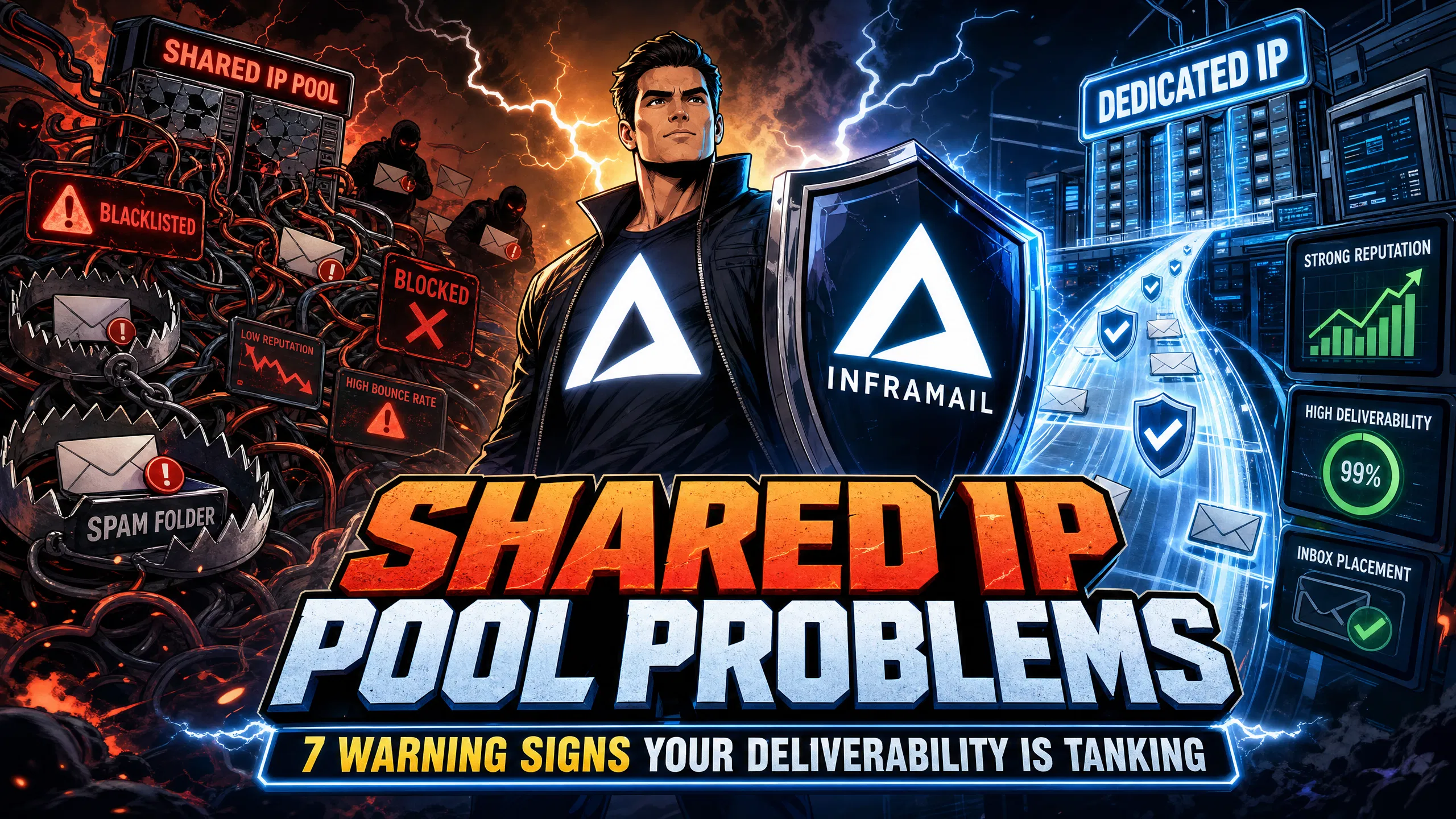
TL;DR: Shared IP pool contamination can cause sudden cold email deliverability drops, not your copy or targeting. When placement falls and bounce rates rise with no change in your sequences, a bad neighbor on your shared pool may be the cause. Diagnose with Mail-Tester and GlockApps to identify Gmail and Outlook placement gaps. Check IPs against Spamhaus and SURBL before every campaign launch. Switching to dedicated IP infrastructure like Inframail isolates your sender reputation and cuts costs by $217-287/month for 50 inboxes versus Google Workspace.
Most campaign managers troubleshoot deliverability drops by rewriting subject lines, testing personalization angles, or scrubbing contact lists. Those are the right instincts when the problem is your content. But when inbox placement drops overnight without any change to your sequences, the cause is rarely your copy.
Shared IP pools tie your sender reputation to every other user on that server. When a bad actor hits spam traps or generates high complaint rates, it can contaminate the entire IP range, and every sender on that pool may absorb the damage. This guide covers the seven specific warning signs of shared IP contamination, the tools to confirm it, and the steps to fix it before your campaigns stall mid-flight.
Inframail's co-founder breaks down the structural differences between dedicated and shared IPs for cold email and why this distinction matters for agencies sending at scale.
Dedicated vs. shared IP: key differences
Factor | Shared IP pool | Dedicated IP |
|---|---|---|
Reputation control | Shared across pool users | Isolated to your sending |
Contamination risk | Other users can affect you | Protected from other senders |
Warmup required | Typically pre-warmed | Yes, typically 4-8 weeks |
Best for | Lower-volume sending | Higher-volume agencies |
Blacklist exposure | Pool users can trigger listings | Your behavior determines listings |
A shared IP is used by multiple senders simultaneously, meaning your deliverability depends on every account sharing that address. A dedicated IP is assigned exclusively to your sending, giving you full control over your sender reputation.
How sender reputation works on shared pools
Mailbox providers evaluate incoming email against two signals: domain reputation and IP reputation. On shared pools, the IP reputation reflects the combined sending behavior of all users on that address range. If one sender generates high complaint rates or hits spam traps, their behavior can degrade the IP score for everyone on the pool, including you.
Gmail reportedly places significant weight on domain reputation, while Outlook appears to evaluate both IP and domain reputation with IP signals playing a notable role in its filtering decisions. This means shared IP contamination may surface differently in Outlook placement data compared to Gmail data, which is a critical variable when your campaigns target Microsoft 365 inboxes.
How shared IPs spread blacklist risk
Bad neighbor behavior can include high complaint rates, spam trap hits, aggressive burst volumes that trigger rate limiting, and sends to invalid addresses at scale. When one account on a shared pool engages in these behaviors, blocklist databases may list the IP. Spamhaus lists IP addresses and ranges that appear to be under the control of spammers, while SURBL lists domains (URLs) found in spam messages rather than IP addresses. Your emails may then bounce or land in spam across providers that check those blocklists, even when your own sending practices are clean.
A strong inbox placement rate typically sits at 80-85% or above across Gmail and Outlook. When that number drops sharply with no change in copy, list quality, or send volume, shared IP contamination is a likely cause.
Diagnosing inbox placement issues
Run a GlockApps seed list test immediately when you notice a drop. GlockApps reportedly sends your test email to verified inboxes across Gmail, Outlook, Yahoo, and other providers, then reports where each copy landed: inbox, spam, or missing. This test can help identify whether the placement issue is provider-specific (potentially suggesting IP reputation) or universal (potentially suggesting content triggers).
Cross-reference GlockApps results with a Mail-Tester score. Mail-Tester scores your email out of 10 and flags specific deductions, including IP-level penalties. A score below 9/10 with deductions tied to your sending IP rather than your content or DNS records may indicate the problem is infrastructure, not copy. This 9/10 threshold is based on Inframail's tested infrastructure performance, though your target may vary depending on domain age and sending volume.
Prove deliverability with Mail-Tester
Inframail reports achieving a 9.5/10 Mail-Tester score and strong inbox placement in testing. Use these as reference benchmarks. If your current provider's infrastructure scores below 8/10 on Mail-Tester and you haven't changed copy or DNS configuration, the deduction may trace back to shared IP reputation.
Bounce rates are often the first hard metric to shift when a shared IP gets contaminated, moving before your inbox placement dashboard catches up.
Hard vs. soft bounces: deliverability clues
Hard bounces typically signal permanent delivery failure. Common causes include invalid addresses, and potentially a blacklisted sending IP that a receiving server is rejecting outright. A sudden hard bounce spike that isn't explained by a change in list quality may point to IP-level rejection.
Soft bounces typically signal temporary failures. SMTP codes like 421 (service temporarily unavailable) may appear when rate limiting kicks in, potentially due to low reputation signals at a receiving server. A cluster of 421 errors from Outlook domains may suggest IP reputation problems, since Outlook appears to weigh IP signals in its filtering decisions.
Target bounce rates for deliverability
Keep these numbers in mind when reviewing campaign reports. Inframail's guide on healthy campaign metrics defines 0-1% hard bounce rate as excellent list quality. Above 2% is critical and requires immediate list audit and IP review. A total bounce rate significantly above normal levels may signal severe infrastructure or list problems that could accelerate blocklist entries.
Check your shared IP for blacklisting
If hard bounce rates spike above 2% within 24 hours of a send and your list was clean going in, run an immediate MXToolbox blacklist lookup on your sending IP. A blacklist entry on Spamhaus or Barracuda may cause receiving servers to bounce your email, confirming the problem is infrastructure rather than list hygiene.
Consistent spam folder placement, especially when copy hasn't changed, is a clear indicator of shared IP trust erosion.
How GlockApps spots spam folder issues
GlockApps reports placement at the mailbox provider level. When inbox rates vary significantly between Gmail and Outlook on the same send, it may point to an IP reputation issue rather than a content problem. Gmail reportedly emphasizes domain reputation, meaning a clean domain can potentially offset some shared IP issues, while Outlook's apparent IP weighting means contamination may show up in your Microsoft placement numbers.
For a full walkthrough of diagnosing spam folder placement, this tutorial on spam diagnosis covers the process at scale.
Diagnosing content vs. shared IP issues
Use this checklist to separate a content problem from an IP reputation problem:
Run the same email copy from a different IP or fresh test domain and compare placement
Check Mail-Tester score: identify whether deductions are in the IP section vs. content section
Verify SPF, DKIM, and DMARC are correctly configured using Inframail's DNS setup video as a reference
Check bounce logs for 550 5.7.1 and 554 codes pointing to policy or IP-level rejection
Run GlockApps and compare Gmail vs. Outlook placement rates on the same send
Look for placement drops that align with other users' sending windows on the shared pool
If the problem follows the IP rather than the copy, you're dealing with a shared IP contamination issue.
A blocklist entry is the most direct confirmation that your shared IP has been contaminated. Listings happen faster than most campaign managers expect and can persist for days even after the bad actor is removed from the pool.
Verify blacklist status: Spamhaus, SURBL
Check your sending IP against the most widely referenced blocklist databases before every campaign launch:
Spamhaus: Enter your IP in the lookup tool at spamhaus.org and check for any listings. Spamhaus listings can trigger rejections at a wide range of receiving servers.
SURBL: Focuses on domains used in spam messages. Check both your sending IP and sending domains across all SURBL categories.
MXToolbox: Aggregates results across 100+ blocklist databases in a single lookup. Run this before every new campaign launch on domains dormant for more than 30 days.
Why shared IPs get blacklisted
Blocklist entries on shared IP pools can trace back to spam trap hits, high complaint rates, and elevated bounce rates from invalid lists. For a breakdown of how shared pool contamination compares to dedicated infrastructure in practice, this Mailreef vs. Mailscale comparison covers the architectural differences and their consequences.
What to expect for blacklist delisting
Delisting from major blocklists on a shared IP is not directly in your control, because you don't own the IP. You must submit a delisting request through your ESP or wait for them to handle it. Delisting timelines vary by database and may require manual review for certain listings.
Inframail's Deliverability Monitoring Dashboard monitors your domains for blocklist entries and can auto-submit delisting requests when flagged, achieving a 68.3% delisting success rate within 48 hours across monitored domains. On a shared pool managed by a third party, your timeline depends entirely on when your ESP acts on the ticket.
A reply rate drop that can't be explained by copy quality, targeting changes, or seasonality is one of the harder-to-diagnose shared IP signals, because engagement is a downstream effect of placement.
Track your baseline reply rate
Establish a per-sequence, per-domain baseline before scaling volume. If your baseline holds steady on a warmed sequence targeting a clean list and then drops sharply with identical copy, check placement before editing the email.
Linking reply drops to inbox placement
Mailbox providers reportedly track recipient behavior after delivery. Low open rates, no clicks, and no replies may signal to Gmail and Outlook that recipients don't want those messages, and that negative engagement can influence future placement. When shared IP contamination reduces initial inbox placement, you get fewer opens and weaker engagement signals, which may then make subsequent placement worse. This 2026 cold email guide covers how engagement signals feed back into placement rates under current provider rules.
You run two campaigns with identical copy and targeting on the same infrastructure, and one performs noticeably better than the other. Variable results without a clear difference in variables point to shared IP volatility.
Identical emails, variable deliverability
Shared pools can experience reputation shifts based on what other users are doing. If another sender runs a burst campaign between 9 AM and 11 AM and generates complaint spikes, your 10 AM send may go out on a degraded IP. Your 2 PM send, after partial recovery, performs better. Same copy. Same list segment. Different results because of timing relative to another user's behavior.
How shared IPs affect domain trust
Even when your domain has strong reputation signals (clean DNS records, proper warmup, low complaint history), a contaminated shared IP may influence those domain signals at the delivery layer, especially for Outlook. Our Maildoso deliverability review documents how shared IP management can create inconsistency, where performance may vary depending on pool dynamics.
For a full infrastructure architecture comparison, the ultimate cold email guide covers the decision from inbox creation through sending platform integration.
SMTP rejection codes are the most direct signal your infrastructure can give you. Most campaign managers dismiss them as isolated events, but clusters of the same code from multiple providers signal infrastructure-level problems.
Decoding common ESP rejection codes
These rejection codes are most directly linked to IP reputation problems:
554 (permanent rejection): The receiving server refuses the entire session. This can indicate a blacklisted IP, failed authentication, or a severe policy violation. Multiple 554s from different providers in a short window may warrant an immediate blacklist check.
550 5.7.1 (policy rejection): The receiving server rejects the message, often due to a security or policy issue, which can occur when IP reputation is poor or authentication records are misconfigured.
421 (service temporarily unavailable): May appear when the receiving server rate-limits your IP, potentially due to low-reputation signals. A cluster of 421 errors from Outlook may indicate IP reputation throttling.
Spotting Microsoft vs. Gmail rejections
Gmail is more likely to silently route to spam rather than reject outright, making GlockApps testing essential since silent spam placement stays invisible to basic bounce tracking. Outlook may be more likely to issue explicit 550 or 554 rejections when IP reputation is poor. Inframail's Microsoft blacklist guide covers the specific delisting process for Microsoft's IP reputation database.
When placement drops and rejection codes appear, work through this diagnostic sequence before making infrastructure changes or pausing campaigns.
Run a GlockApps seed test on your current campaign sequence to establish where the placement breakdown is happening (Gmail, Outlook, or both). Then run Mail-Tester to score your email and identify whether deductions trace to IP reputation or content. Our Deliverability Monitoring Dashboard tracks domain and IP health in real time with blocklist alerts that flag issues before they cascade. Our guide on spam placement and metrics covers the exact thresholds for each signal.
Check blocklist status by running your sending IP through MXToolbox for a consolidated view across 100+ databases, then follow up directly on Spamhaus and SURBL. Note any active listings, the date of first listing, and the reason. Recent contamination from another pool user typically shows a listing date that predates your recent campaign activity.
Check Cisco Talos by entering your sending IP at Cisco Talos Intelligence to get a reputation rating. A Poor rating indicates active reputation issues. Note that a Neutral rating typically indicates acceptable standing and can reflect either minor issues or simply low traffic levels. Compare the timing of any rating shift against your own sending activity to determine whether the cause is your behavior or a neighbor's.
Confirm your IP type by asking your infrastructure provider whether your IP is shared or dedicated, and if shared, request a history of recent blocklist events on that IP range. If they can't provide this information, treat that as a signal about their infrastructure management quality. This Mailreef vs. Inframail comparison covers how dedicated server infrastructure (Mailreef) compares to dedicated IP cloud infrastructure (Inframail).
Validate with a fresh domain by registering one test domain unconnected to any existing campaign, configuring SPF, DKIM, and DMARC records, and sending a test batch through your current infrastructure. Run GlockApps on the send. Strong placement on the fresh domain with the same infrastructure points to a domain reputation problem. Poor placement on the fresh domain confirms the infrastructure's IP is the issue.
Once shared IP contamination is confirmed, temporary mitigation measures only delay the inevitable. As long as you're on a shared pool, another user's behavior can contaminate your results at any point.
Dedicated IP: cost vs. deliverability
The cost objection to dedicated IPs dissolves quickly when you run the actual numbers:
Infrastructure | Monthly cost | Annual cost |
|---|---|---|
Google Workspace (50 inboxes at $7-8.40/inbox) | $350-420 | $4,200-5,040 |
Inframail Unlimited ($129/month platform + ~$34/month domains) | ~$163 | ~$1,956 |
Annual savings | $187-257 | $2,244-3,084 |
Scale to 200 inboxes and the cost difference becomes significant: Google Workspace Business Starter charges per seat, making larger deployments costly. Inframail's flat-rate model stays at $129/month whether you create 50 or 500 inboxes. The Agency Pack at $327/month gives you 3 dedicated US-based IPs, with your sending behavior alone determining reputation on each. For a full cost breakdown across 7 platforms, this infrastructure cost comparison covers the full model at 50, 200, and 500 inbox tiers.
Warm up your dedicated IP before full volume
Switching to a dedicated IP typically requires a warmup period of 4-8 weeks before running full campaign volume. A common approach is to start with lower daily volumes and gradually increase, focusing on your most engaged contacts first. High engagement signals (opens, replies) during warmup can help tell ISPs that your new IP is a legitimate sender.
External warmup tools like Warmbox or Lemwarm can automate engagement sequences during the warmup period. Pricing varies by provider and inbox count, so verify current rates when calculating total cost. Our DFY Email Campaign Setup package includes domain warmup service, eliminating the need for external warmup tool subscriptions during the warmup period. For detailed warmup guidance after migrating, our inbox warmup guide covers the full schedule.
Automate DNS configuration to eliminate setup bottlenecks
Beyond the IP architecture, the DNS setup bottleneck is the other major operational cost that scales with agency growth. Manual DNS configuration for dozens of domains can require hours of active work across DNS panels, with time varying by provider interface and technical familiarity. Inframail's automated DNS configuration handles SPF, DKIM, and DMARC record creation without requiring manual panel access.
"Adding over 1,000 accounts literally took a couple of button clicks. I was impressed that all email accounts even connected, let alone how easy it was lol." - Verified user review of Inframail
Inframail provides IMAP/SMTP credentials that can be imported into platforms like Instantly.ai or Smartlead. For the full integration walkthrough, Inframail's Smartlead integration guide covers the exact import process. For agencies migrating from Maildoso, this Maildoso migration guide covers the cutover process step by step.
Sign up to Inframail and get started today with unlimited inboxes on dedicated US-based IPs at $129/month, automated DNS configuration, and built-in blacklist monitoring.
How do I know if my email is on a shared IP?
Check the IP assigned to your inboxes in your infrastructure provider's dashboard. Run it through MXToolbox or Cisco Talos to investigate whether multiple unrelated domains send from that IP, which may indicate a shared pool.
What bounce rate warrants an immediate IP investigation?
Per Inframail's deliverability benchmarks, a hard bounce rate of 2% or above is the threshold for critical action. Keep hard bounce rates at or below 1% for optimal sender reputation. When combined with 550 or 554 rejection codes from multiple providers in the same send window, run an immediate blocklist check on your sending IP.
Does Gmail or Outlook respond differently to shared IP contamination?
Gmail reportedly weights domain reputation as its primary signal, so shared IP contamination may show up more gradually in Gmail placement data. Outlook appears to evaluate both IP and domain reputation with IP signals playing a notable filtering role, so IP-level contamination may surface in Outlook placement data more readily.
How long does warming a new dedicated IP take?
Warming a dedicated IP typically takes 4-8 weeks of gradual volume increases. A common approach is to start at lower daily volumes, increase gradually each day, and send to your most engaged contacts first to build positive ISP signals.
Can I run campaigns on a new dedicated IP before it's fully warmed?
You can send limited volumes during warmup, but placement rates may be lower than a fully warmed IP during the early weeks because ISPs have limited data to evaluate the new IP's reputation. Stick to warmup best practices (gradual volume increases, most engaged segments only) during this period to protect both your IP and domain reputation. Running full production campaigns before warmup is complete risks harming your sender reputation.
What is the cost difference between Inframail and Google Workspace for 100 inboxes?
Google Workspace Business Starter pricing should be verified on their current pricing page, as per-seat costs may have changed. Inframail's Unlimited Plan is $129/month for unlimited inboxes plus domain costs, providing significant savings at scale compared to per-seat pricing models.
Does Inframail require external warmup tools?
Inframail can work with external warmup tools like Warmbox or Lemwarm for automated engagement sequences during IP warmup, as covered in our warmup guide. The exception is the DFY Email Campaign Setup package, which includes free domain warmup.
Dedicated IP: An IP address assigned exclusively to one sender, meaning only that sender's behavior determines the IP's reputation with mailbox providers.
Shared IP pool: A group of IP addresses used by multiple senders simultaneously, where all senders share a blended reputation score based on aggregate sending behavior.
SPF (Sender Policy Framework): A DNS record that specifies which mail servers are authorized to send email on behalf of your domain, used by receiving servers to verify email legitimacy.
DKIM (DomainKeys Identified Mail): A cryptographic signature added to outgoing email headers that allows receiving servers to verify the message wasn't altered in transit.
DMARC: A DNS policy that tells receiving servers what to do with emails that fail SPF or DKIM checks, and reports those failures back to the sender.
Inbox placement rate: The percentage of sent emails that land in the recipient's inbox rather than spam or promotions folders, measured by sending to seed lists of known addresses across multiple providers.
Blacklist (blocklist): A database of IP addresses or domains flagged as sources of spam, maintained by organizations like Spamhaus and SURBL and used by receiving servers to filter incoming mail.
IP warming: The process of gradually increasing sending volume on a new dedicated IP over 4-8 weeks to build sender reputation with mailbox providers before running full campaign volume.
SMTP rejection code: A numeric response code returned by a receiving mail server to indicate why an email was rejected, with codes 550 and 554 typically indicating policy or IP reputation-based rejections.
Sender reputation: A composite score maintained by mailbox providers based on the sending history of an IP address and domain, including complaint rates, bounce rates, and recipient engagement signals.