
Microsoft Cold Email Deliverability Deep Dive: SPF, DKIM, DMARC & Microsoft-Specific Gotchas
Learn how Microsoft cold email deliverability works in 2026, including SPF, DKIM, DMARC, SMTP AUTH, Outlook filtering, DNS setup, and Inframail infrastructure costs.
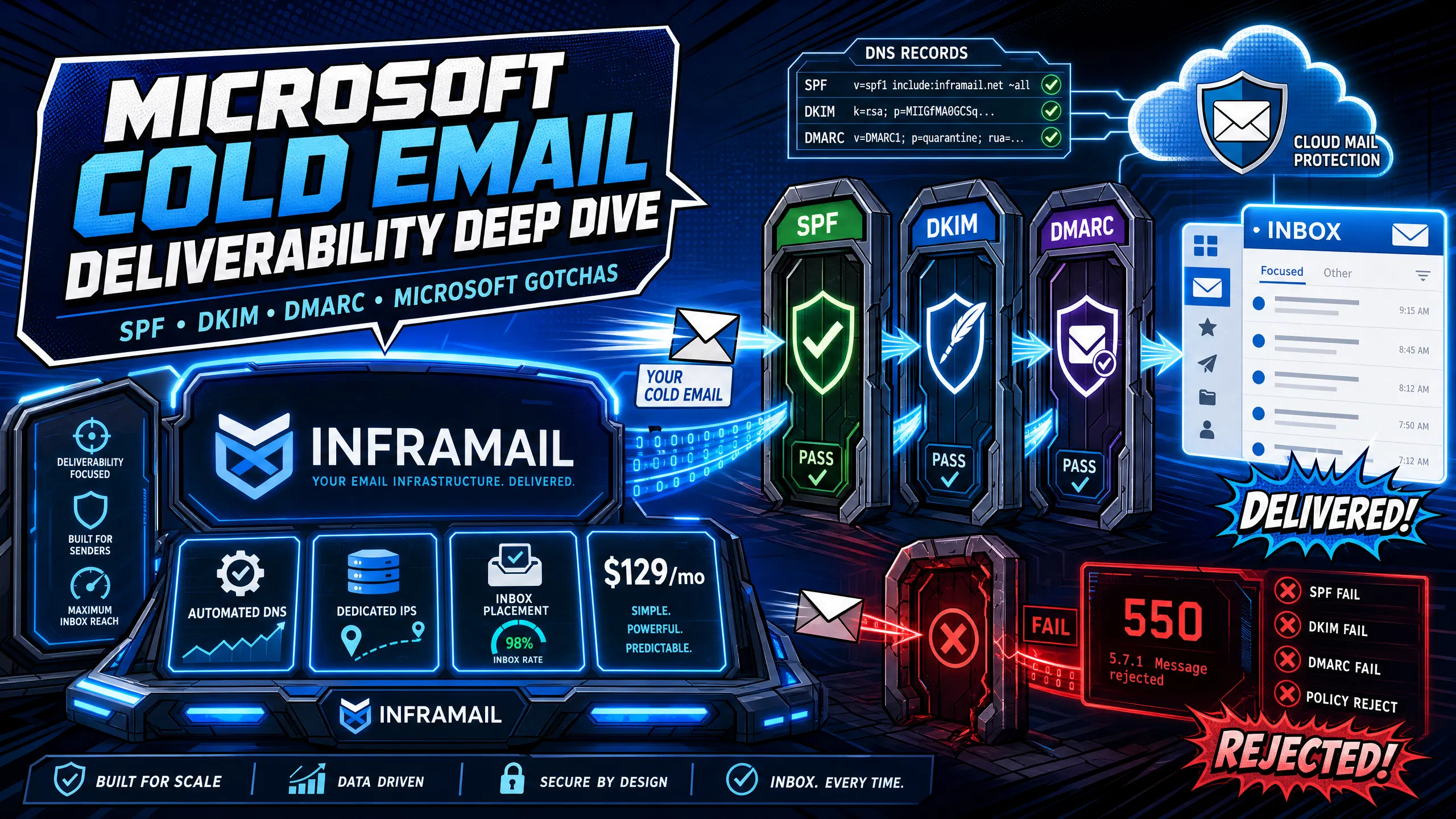
TL;DR: Microsoft 365 requires precise SPF, DKIM, and DMARC configuration for cold email, with stricter enforcement than most Google Workspace guides prepare you for. Miss the 10 DNS lookup limit, fail DMARC alignment, or skip SMTP AUTH modernization and Microsoft rejects your messages outright rather than filing them in spam. Manual DNS setup across 50 domains consumes 12+ hours per onboarding cycle and introduces errors that tank inbox placement before you can diagnose the cause. We automate the full DNS stack on dedicated US-based IPs for a flat $129/month fee, cutting infrastructure cost-per-client from $350-420/month to $163/month for 50 inboxes.
Most agencies lose deliverability not because of weak email copy but because they apply Google Workspace logic to Microsoft's stricter authentication environment. A single mistyped SPF record across 50 domains collapses inbox placement before you spot it, and clients report zero replies for two weeks before the founder gets involved.
Our testing via GMass shows 88% inbox placement for correctly authenticated domains. Miss any one of Microsoft's specific authentication requirements and placement collapses. This guide covers the exact configuration steps, the rules that Google guides skip, and how automating the setup eliminates the bottleneck slowing client launches.
SPF, DKIM, and DMARC work together to prove the server sending on your behalf is authorized, that the message body was not altered in transit, and that both checks align with your domain identity. Microsoft's DMARC configuration documentation treats all three as mandatory for senders exceeding 5,000 messages per day, with non-compliant messages rejected rather than quarantined.
High-volume senders without correct authentication setup have seen inbox placement for Microsoft 365 drop significantly as Outlook's filters tightened, per Winnr's Microsoft 365 deliverability analysis. The gap between correct and incorrect setup is not marginal. It is campaign-ending.
Microsoft 365 DMARC enforcement
Microsoft Defender for Office 365 defaults to HonorDmarcPolicy=$true and DmarcRejectAction=Reject for new tenants, per the Microsoft Defender DMARC guide. A domain publishing p=reject means Microsoft rejects any message failing DMARC alignment outright. The sender receives a 550 5.7.509 NDR rather than a soft bounce, and no retry delivers the message until you fix the underlying alignment issue. Configure DMARC before you send a single message from any new domain.
Exchange Online authentication setup
Setting up authentication in Exchange Online requires four steps:
Publish SPF: Add a TXT record on your domain:
v=spf1 include:spf.protection.outlook.com -allEnable DKIM: In the Microsoft 365 Defender portal, go to Email & Collaboration > Policies & Rules > Threat Policies > Email Authentication Settings > DKIM, select your domain, enable DKIM signing, then copy the two CNAME records provided and add them to your DNS.
Publish DMARC: Add a TXT record at
_dmarc.yourdomain.com:v=DMARC1; p=none; rua=mailto:dmarc@yourdomain.comto collect reports before escalating policy.Enable SMTP AUTH: Microsoft disables SMTP AUTH by default for new tenants, so you must manually enable it per mailbox or at tenant level if your sending platform requires it.
We handle the first three steps automatically during domain provisioning. SMTP AUTH must still be enabled manually in your Microsoft 365 admin center per mailbox or at tenant level. Watch the SPF, DKIM, and DMARC setup walkthrough to see 10+ inboxes configured at once, and read how one user describes the experience:
"SPF, DKIM, DMARC, forwarding - all handled in literally seconds without me having to dig through docs or guess what records to add." - Verified user review of Inframail
Decoding Outlook.com's email filters
Senders exceeding 5,000 emails per day must have all three authentication protocols configured, per Microsoft's authentication requirements, with DMARC alignment required or messages are rejected at the gateway. Outlook also evaluates complaint rate, spam trap hits, and IP reputation alongside authentication. Passing authentication is necessary, but not sufficient on its own.
SPF is a DNS TXT record that lists which mail servers you authorize to send email on behalf of your domain. Receiving servers query the record and check whether your authorized list includes the sending IP. Microsoft recommends -all (hard fail) when DKIM and DMARC are also in place, ensuring unauthenticated senders are rejected rather than softly handled.
The 10 DNS lookup rule
RFC 7208 caps SPF evaluation at 10 DNS lookups. The include, a, mx, ptr, and exists mechanisms each consume one lookup. The all, ip4, and ip6 mechanisms do not. Exceeding 10 lookups returns a Permerror, which Microsoft treats as an authentication failure, causing email to land in spam or face outright rejection. A record including Microsoft 365, a marketing platform, a CRM, and a bounce handler can easily exceed 10 lookups before you add anything else. Check your current count at MXToolbox SPF lookup.
The fix is SPF flattening: resolve each include mechanism to its underlying IP addresses and replace dynamic includes with static ip4 or ip6 entries, collapsing a 12-lookup record to 1-2 lookups. We pre-configure each domain's SPF record automatically during provisioning, with no DNS panel access required. For agencies running 50 domains manually, that eliminates 12+ hours of per-client setup work.
Common SPF errors that kill inboxes
Duplicate SPF records: Publishing two TXT records starting with
v=spf1on the same domain causes an immediatePermerror. Each domain gets exactly one SPF record.Missing
all: Microsoft recommendsall(hard fail) when DKIM and DMARC are in place so DMARC can act on messages that fail SPF and lack DKIM signatures, per Microsoft's SPF documentation.Stale includes: Adding a sending service's
includebut removing the service months later leaves a lookup consuming against the limit with no value.Wrong domain scope: Setting SPF on the root domain but sending from a subdomain leaves the subdomain unprotected.
DKIM adds a cryptographic signature to each outgoing message. The receiving server fetches your public key from DNS CNAME records and verifies the signature matches. If anyone altered the message body or headers in transit, the signature fails. Microsoft 365 uses two CNAME selector records (selector1 and selector2) that alternate during key rotation.
Setting up and rotating DKIM keys
Navigate to the Microsoft 365 Defender DKIM settings at https://security.microsoft.com/dkimv2. Select your domain, enable DKIM signing, and publish the two CNAME records Microsoft generates in your DNS. To rotate keys, return to the same page and click "Rotate DKIM keys." Microsoft activates the inactive selector and deactivates the current one, per the Microsoft DKIM configuration guide. Allow time for DNS propagation before testing.
Microsoft 365 supports 2048-bit DKIM keys, per the Microsoft DKIM configuration guide, and 2048-bit is the recommended key length for new domains. If your domain was set up before Microsoft updated the default, check the key length in the Defender portal and rotate to 2048-bit. Rotate annually at minimum, and immediately after any infrastructure security incident.
Troubleshooting DKIM issues
Run this checklist when DKIM signatures fail in Microsoft environments:
Confirm CNAME records are published for both
selector1._domainkeyandselector2._domainkeyVerify DKIM is toggled ON in the Defender portal for the specific domain
Check the email header
DKIM-Signaturefield to confirm which selector signed the messageRun the domain through MXToolbox DKIM lookup to verify the record resolves
Wait 24-48 hours after any key rotation before testing, as propagation delays are the most common cause of apparent DKIM failure
DMARC ties SPF and DKIM together and tells receiving servers what to do when one or both checks fail. It also generates XML aggregate reports (RUA) that show which servers send mail on your domain's behalf, making it the primary diagnostic tool for catching spoofing or misconfigured services.
Setting your DMARC policy
Policy | Effect | Use when |
|---|---|---|
| Report only, no action | New domains starting authentication |
| Failed messages go to spam | After 90+ days at p=none with clean RUA reports |
| Failed messages are rejected | After 90+ days at p=quarantine with full alignment confirmed |
Start with p=none and an RUA reporting address for at least 90 days. Escalate to p=quarantine, wait 90 more days, then move to p=reject once reports show consistent alignment above 95%. The full journey from p=none to p=reject typically takes 9 to 18 months, per DMARC Report. Rushing to p=reject before confirming alignment rejects your own legitimate mail.
Reading DMARC reports and alignment
You receive DMARC XML reports at the RUA address you specify in your record. Each report shows the sending IP, the SPF result, the DKIM result, and the DMARC disposition. Alignment failures appear as spf=pass dmarc=fail entries where the sending platform uses its own bounce-handling domain in the MailFrom path rather than your domain. The DMARC Office 365 complete guide covers report parsing in detail.
For subdomains, you can set a subdomain-specific policy using the sp= tag in the root domain's DMARC record. DMARC enforcement applies to subdomains unless overridden. For alignment, relaxed alignment (the default) allows organizational domain matches. Strict alignment requires exact matches and breaks DMARC for most cold outreach stacks unless you verify your sending platform's MailFrom domain first.
Authentication alone does not guarantee inbox placement. Microsoft applies throttling and sender reputation scoring on top of authentication, and violating either set of rules triggers filtering that no DNS change can reverse.
Sending limits and filter rules
Microsoft 365 enforces 10,000 recipients per day per user and 30 messages per minute per user. The tenant external recipient rate limit scales with license count. Exceeding daily limits triggers throttling and flags the sending inbox for additional scrutiny. Spread volume across multiple inboxes per domain to stay well below per-user limits.
For cold outreach volumes, industry best practice recommends sending 20-40 emails per inbox per day during initial warmup, rotating across 3-5 inboxes per domain, and monitoring complaint rates using Microsoft's SNDS tool, targeting a complaint rate below 0.1% per Microsoft's postmaster deliverability documentation. Keep list bounce rates below 2% by verifying all contact lists before importing to your sending platform.
Managing IP reputation via SNDS
Microsoft's Smart Network Data Services (SNDS) gives dedicated IP senders visibility into how Outlook.com evaluates their IP. SNDS tracks filter results, blocked IP status, spam trap hits, and complaint rate per IP, as the Iterable SNDS deliverability guide explains. SNDS access is only available to dedicated IP owners because the data is IP-specific.
Our Unlimited Plan ($129/month) includes 1 dedicated US-based IP. The Agency Pack includes 3 dedicated US-based IPs (see Inframail pricing for Agency Pack cost). Shared IP pools mix your sending reputation with every other sender on the same range. One bad actor on the pool can trigger SNDS flags that drop your inbox placement even when your authentication is perfect. Register your IPs at the Microsoft SNDS portal to start monitoring.
"We spent months hunting for a reliable cold-emailing stack. After repeated failures with another provider, we trialled two options—Inframail and a competitor. We chose the competitor. A month later, we switched back to Inframail. Zero issues since." - Verified user review of Inframail
Fresh Microsoft 365 inboxes carry zero sending history, so Microsoft's filters apply maximum scrutiny to every message until a positive reputation builds. Our testing via GMass shows 88% inbox placement for correctly authenticated domains. Fresh accounts require 4-8 weeks of disciplined warmup to reach that level.
Warmup schedule: days 0-90
Week | Emails per inbox per day | Focus |
|---|---|---|
Week 1-2 | 10-20 | Seed with verified, engaged contacts |
Week 3-4 | 20-30 | Introduce cold contacts in batches |
Week 5-6 | 30-40 | Standard campaign volume |
Week 7-8 | 40-50 | Monitor SNDS, adjust if flags appear |
The Inframail inbox creation walkthrough shows how inboxes are provisioned with dedicated IP assignment before warmup begins, ensuring warmup runs on isolated IPs rather than a shared pool where other users' sending affects your reputation progress.
Warmup best practices
We don't include a built-in warmup tool. You'll need an external service like Warmbox or Lemwarm ($15-50/month per inbox) before starting cold campaigns.
Do not start cold outreach until DMARC reports show SPF and DKIM passing consistently.
Run a Mail-Tester check before launching each new domain to confirm authentication is clean before touching real prospects. Our infrastructure consistently scores 9.5/10 on Mail-Tester in our internal testing.
Stay below 50 emails per inbox per day for cold outreach. Pushing to 100/day accelerates filter scrutiny and raises complaint rates.
When inbox placement drops mid-campaign, the diagnostic window is short. Clients escalate within days of seeing zero replies, and every hour of uncertainty compounds the client relationship risk. The Inframail cold email infrastructure monitoring guide outlines a systematic approach to catching issues before clients report them.
NDR error codes for Microsoft 365
Microsoft non-delivery reports include specific codes that identify the exact failure:
550 5.7.509: DMARC failure on a domain publishing
p=reject. The sending domain's SPF or DKIM failed to align with theFromheader.550 5.7.515: The
5322.Fromdomain does not meet Microsoft's authentication requirements for Outlook.com or Hotmail recipients, per Microsoft's Exchange Online NDR documentation.550 5.7.1: The receiving server's DMARC policy rejected the message. This is a sender-side configuration issue, not a content issue.
Deliverability crisis checklist
Use this sequence when inbox placement drops more than 10% across multiple client domains:
Immediate actions (within 1 hour):
Pause all sending for affected domains to stop accumulating complaint signals
Check the sending domain's IP at the Microsoft SNDS portal for blocked status or elevated complaint rate
Query the domain at MXToolbox blacklist check to identify any third-party blacklist listings
Diagnosis (hours 2-4):
Verify SPF, DKIM, and DMARC records are intact via MXToolbox
Check for any DNS migration or registrar change in the past 72 hours that may have disrupted propagation
Review warmup tool logs for sending anomalies in the days before the drop
Confirm SMTP AUTH authentication method is still active for affected inboxes
SMTP AUTH note: Microsoft began a phased removal of Basic Authentication for SMTP AUTH in April 2026, with SMTP AUTH Basic Authentication disabled by default for existing tenants by the end of December 2026 (administrators can still enable it if needed). Any sending platform still connecting via Basic Auth credentials will fail with a 550 5.7.30 error. Migrate to OAuth 2.0 modern authentication immediately if you have not already.
Recovery (days 2-5):
Submit delisting requests at
https://sender.office.comfor any blocked IPs using the Office 365 delist portal. Removal can take up to 24 hours.Fix DNS record errors and confirm propagation before resuming
Resume sending at 25% of normal volume for 7 days to rebuild IP reputation
Monitor SNDS daily until complaint rate returns below 0.1%
The Inframail Microsoft blacklist removal guide covers the specific steps for common Microsoft block scenarios. Our deliverability monitoring dashboard also tracks domain and IP health automatically and auto-submits delisting requests when domains are flagged.
The math for agencies managing 50 cold email domains manually across multiple registrars: manual DNS configuration takes 12+ hours per onboarding cycle for 50 domains, introducing human error risk that automated provisioning eliminates entirely.
Cost component | Google Workspace | Inframail |
|---|---|---|
Platform fee | $350-420/month (50 seats at $7-8.40/seat) | $129/month flat |
Domain costs | Separate, unmanaged | ~$34/month (amortized at $5-16/domain/year) |
DNS setup time | 20-30 min/domain manually | Automated, under 10 min/domain |
Warmup tool | $750-2,500/month (50 inboxes at $15-50/inbox) | $750-2,500/month (50 inboxes at $15-50/inbox) |
Total monthly | $1,100-2,920 | $913-2,663 |
Annual savings | \- | $2,244-$3,084 |
Scaling from 50 to 200 inboxes on Google Workspace pushes the bill to $1,400-1,680/month. Inframail stays at $129/month whether you create 50 or 500 inboxes, keeping your infrastructure cost-per-client predictable as your portfolio grows. See the full cold email infrastructure cost comparison across 7 platforms including warmup tools and sending platform costs for agencies at 50, 100, and 200 inbox tiers.
"So affordable that it will make your unit economics work, even for lower ticket b2b businesses like ours" - Verified user review of Inframail
Sign up to Inframail and provision unlimited Microsoft inboxes on dedicated IPs with automated SPF, DKIM, and DMARC configuration at $129/month flat.
Does Microsoft 365 reject emails that fail DMARC with p=reject?
Yes. Microsoft Defender for Office 365 defaults to DmarcRejectAction=Reject for new tenants, meaning messages from domains publishing p=reject that fail DMARC alignment receive a 550 5.7.509 NDR and are not quarantined. No retry delivers the message until you fix the underlying alignment issue.
What happens when my SPF record exceeds 10 DNS lookups in Microsoft 365?
Microsoft returns a Permerror when SPF evaluation exceeds 10 DNS lookups, per RFC 7208, causing the SPF check to fail and triggering potential DMARC failure. Fix it by flattening SPF includes to static ip4 or ip6 entries.
How often should I rotate DKIM keys in Exchange Online?
Rotate annually at minimum and immediately after any infrastructure security incident. Microsoft generates two selector pairs to allow zero-downtime rotation, per the DKIM configuration guide, and you should allow 24-48 hours for DNS propagation after each rotation before testing.
What is the Microsoft SMTP AUTH deprecation timeline?
Microsoft began a phased removal of Basic Authentication for SMTP AUTH in April 2026, with SMTP AUTH Basic Authentication disabled by default for existing tenants by the end of December 2026 (administrators can still enable it if needed). Any platform connecting via Basic Auth will return a 550 5.7.30 error once the disable applies to your tenant.
How many cold emails can one Microsoft 365 inbox send per day?
Microsoft's hard limit is 10,000 recipients per day and 30 messages per minute per user. For cold outreach, best practice is 40-50 emails per inbox per day after warmup, staying well below the technical limit to protect sender reputation in Microsoft's filters.
Does Inframail include a native warmup tool for Microsoft 365 inboxes?
No. We require an external warmup tool such as Warmbox or Lemwarm (typically $15-50/month per inbox). The Done-For-You package at $3,497 one-time or $499/month includes free email account warmup alongside automated DNS setup and sending platform access.
SPF (Sender Policy Framework): A DNS TXT record listing which mail servers you authorize to send on behalf of your domain. Receiving servers check the sending IP against this list and return pass, fail, or error.
DKIM (DomainKeys Identified Mail): A cryptographic signature added to outgoing email headers. The receiving server fetches the matching public key from DNS CNAME records and verifies the signature to confirm the message was not altered in transit.
DMARC (Domain-based Message Authentication, Reporting, and Conformance): A DNS policy record that ties SPF and DKIM results together and instructs receiving servers to quarantine or reject messages that fail alignment. It also generates XML reports showing all servers sending on your domain's behalf.
DMARC alignment: The requirement that the domain in the SPF MailFrom field or the DKIM d= field matches the From header domain. Relaxed alignment allows organizational domain matches. Strict alignment requires exact matches.
SPF flattening: Replacing dynamic include mechanisms in an SPF record with static ip4 or ip6 entries to keep DNS lookup count below the 10-lookup limit defined in RFC 7208.
SNDS (Smart Network Data Services): Microsoft's free IP reputation monitoring tool at sendersupport.olc.protection.outlook.com/snds, providing spam complaint rates, filter results, and blocked IP status data for dedicated IP senders.
SMTP AUTH deprecation: Microsoft's phased removal of Basic Authentication support for SMTP AUTH, beginning April 2026 and targeting full disable for existing tenants in December 2026, requiring sending platforms to use OAuth 2.0.
Dedicated IP: A sending IP address assigned exclusively to one sender or account, isolating that sender's reputation from other users. Contrasted with shared IP pools where multiple senders share reputation risk.
Permerror: The SPF evaluation result returned when an SPF record exceeds 10 DNS lookups. Microsoft treats a Permerror as an authentication failure, which can cascade into DMARC failure and message rejection.
NDR (Non-Delivery Report): A bounce message from Microsoft's mail server containing a specific error code (such as 550 5.7.509) explaining why the message was rejected, used to diagnose the exact authentication or policy failure.