
Microsoft Cold Email Automation: Integrating Smartlead, Instantly & Apollo with Microsoft IPs
Learn how to connect Microsoft 365 mailboxes to Smartlead, Instantly, and Apollo using SMTP AUTH, IMAP credentials, CSV imports, webhook automation, and Inframail infrastructure.
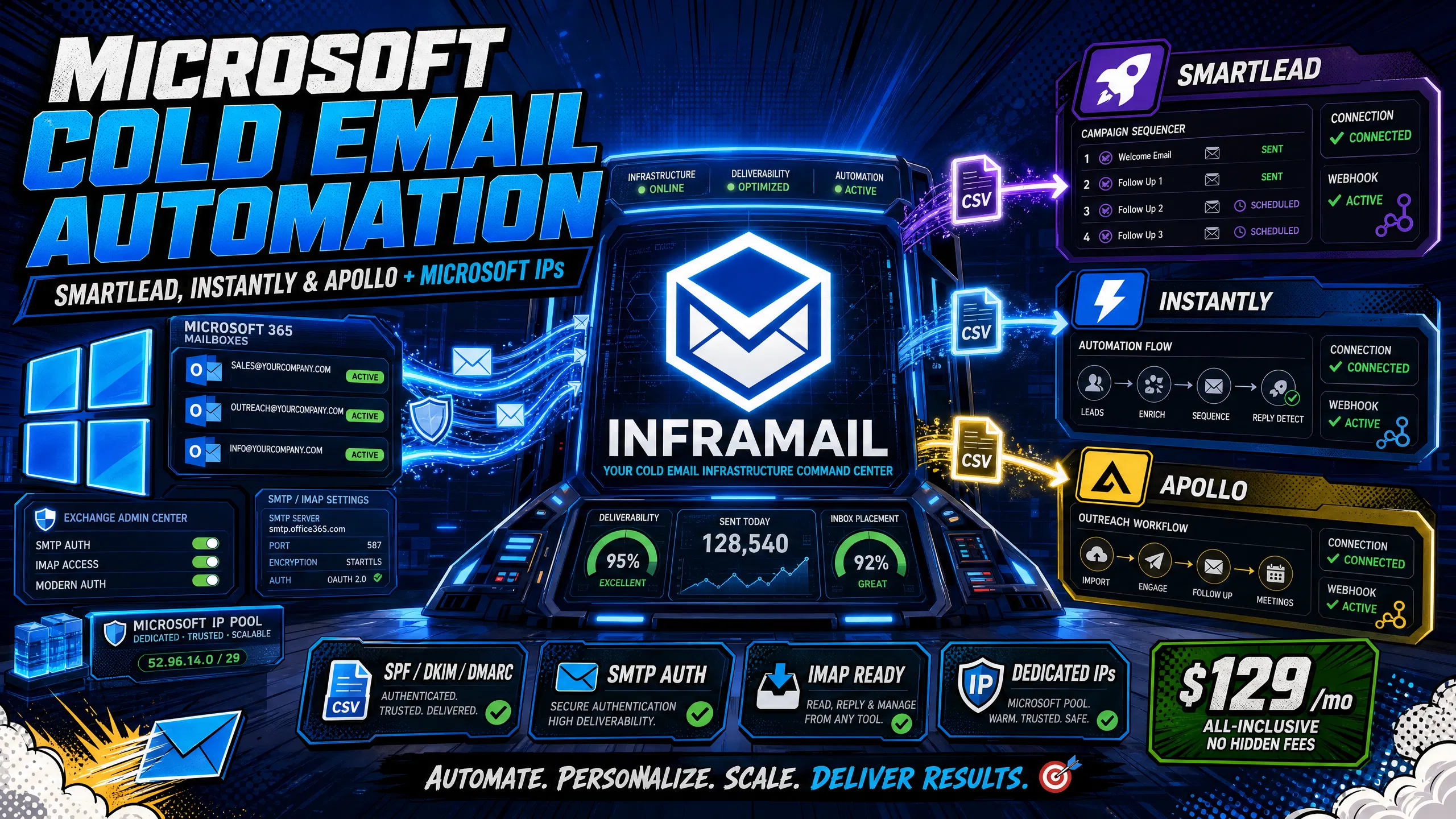
TL;DR: Connecting Microsoft 365 mailboxes to Smartlead, Instantly, and Apollo requires enabling authenticated SMTP in the Exchange admin center, exporting IMAP credentials, and importing them into your sending platform via CSV. Inframail automates the DNS configuration layer (SPF, DKIM, DMARC) and generates formatted exports for you, cutting hours of manual work out of the process. At $129/month for unlimited inboxes versus $420/month for 50 inboxes on Google Workspace, you save $291/month per 50-inbox client ($3,492 annually).
Operations managers at growing agencies typically spend hours monthly manually configuring DNS records across registrars while Google Workspace bills scale linearly with inbox count. Scaling a client from 20 to 50 inboxes on Google Workspace costs an extra $252 per month, but on a flat-rate Microsoft infrastructure that expansion costs zero.
This guide covers the exact steps to connect Microsoft 365 mailboxes to Smartlead, Instantly, and Apollo, including IMAP server settings, OAuth versus app password decisions, bulk CSV import formats, Exchange Online sending limits, and the common errors that break connections after import.
Before you export a single credential, three prerequisites must be in place: Exchange Admin permissions, SMTP AUTH enabled per mailbox, and DNS authentication records active. Skipping any one of them causes authentication failures in Smartlead, Instantly, or Apollo on every connection attempt.
Integration setup checklist (complete before importing to any platform):
Assign Exchange Admin or Global Admin role in Azure Active Directory
Enable SMTP AUTH for all sending mailboxes in the Microsoft 365 admin center
Verify SPF, DKIM, and DMARC records are active for each domain
Export IMAP credentials CSV from Inframail's Update tab (or manually via PowerShell)
Generate app passwords for any MFA-enabled accounts
Import CSV into your sending platform and verify green connection status
Configure daily send limits per inbox (start at 5-10 emails/day for new inboxes, ramp to ~100 emails/day as inboxes warm up, staying under 30 messages/minute)
Set up warmup via an external tool (Warmbox, Lemwarm) for new inboxes before cold sends
Configure a custom tracking domain for open and click tracking
Set up a webhook in Make.com or Zapier to capture reply events in real time
Configuring M365 for cold email
Two Microsoft 365 plans cover cold outreach at the inbox level:
Plan | Cost/seat/month | Best for |
|---|---|---|
Business Basic | $6 (annual) / $7.20 (monthly) | Dedicated sending inboxes where no human logs in daily |
Business Standard | $12.50 | Hybrid accounts where AMs need Outlook desktop for client communication |
Microsoft 365 Business Basic at $6/user/month on annual billing includes Exchange Online mailboxes and web access, which covers all the infrastructure requirements for dedicated cold email inboxes. Business Standard adds desktop Office apps for seats that need them. For pure sending inboxes, Business Basic is the right plan.
Configuring Exchange admin roles
You need Global Admin or Exchange Admin permissions to enable SMTP AUTH in bulk and manage mailbox settings, because without these permissions the SMTP AUTH toggle in the admin center is not accessible. Assign the Exchange Admin role in Azure Active Directory before starting the setup process.
Microsoft 365 IMAP/SMTP setup
These are the exact server settings for connecting any Microsoft 365 mailbox to a third-party sending platform, confirmed in Microsoft's official Exchange Online documentation:
IMAP settings:
Server: outlook.office365.com
Port: 993
Encryption: SSL/TLS
SMTP settings:
Server: smtp.office365.com
Port: 587
Encryption: STARTTLS
To enable authenticated SMTP for a specific mailbox, open the Microsoft 365 admin center, navigate to Users, then Active users. Select the user, click Mail, then Manage email apps, and check the box for Authenticated SMTP. Save changes. Without this step, SMTP AUTH is disabled by default on newer Microsoft 365 tenants, which means your sending platform will return a 5.7.57 authentication error on every connection attempt. Settings can take up to several hours to propagate fully before the connection authenticates cleanly.
You need three DNS authentication record types with this exact syntax:
SPF:
v=spf1 include:spf.protection.outlook.com -allDKIM: Two CNAME records (selector1 and selector2), each pointing to Microsoft's tenant-specific signing key
DMARC: Start with
v=DMARC1; p=none; rua=mailto:yourdomain@rua.spfmonitor.com. Monitor reports for 60-90 days before moving top=quarantineto ensure all legitimate senders are identified and authenticated
Inframail auto-generates all three records for every domain you provision, as shown in this SPF, DKIM, and DMARC setup walkthrough. No manual DNS panel work required.
If MFA is enabled on a sending account, generate an app password at myaccount.microsoft.com under Security Info, because standard SMTP password authentication will fail when MFA is active.
Microsoft 365 runs on dedicated US-based IPs when you provision through Inframail, scoring 88% inbox placement via GMass testing and 9.5/10 on Mail-Tester. While Microsoft Outlook and Google Workspace dominate enterprise email, Microsoft infrastructure can provide solid deliverability for B2B sends.
Lower inbox costs: Microsoft vs. Google Workspace
The TCO math is the first thing to verify before any integration work begins. The table below uses a consistent assumption of 2 inboxes per domain across both platforms:
Inbox count | Google Workspace ($8.40/seat + domains) | Inframail ($129/mo flat + domains) | Monthly savings |
|---|---|---|---|
50 inboxes | $420 + $34 = $454 | $129 + $34 = $163 | $291 |
100 inboxes | $840 + $67 = $907 | $129 + $67 = $196 | $711 |
200 inboxes | $1,680 + $133 = $1,813 | $129 + $133 = $262 | $1,551 |
At 50 inboxes you save $291 per month, or $3,492 annually. The flat-rate model means infrastructure costs don't scale with inbox count, which is the only cost structure that protects agency margin at growth.
"So affordable that it will make your unit economics work, even for lower ticket b2b businesses like ours" - Verified user review of Inframail
Why dedicated IPs improve deliverability
Shared IP pools work like carpool lanes where your reputation can be affected by other senders' behavior. Dedicated IPs work like private lanes where your behavior alone determines reputation, protecting client campaigns from deliverability drops caused by other senders and eliminating the multi-client crisis scenario where one bad actor tanks your entire portfolio.
Inframail's Unlimited plan includes 1 dedicated US-based IP. The Agency Pack includes 3. Your sending reputation stays isolated from every other user on the platform.
Microsoft 365 compliance for agencies
We run Inframail infrastructure in US-based data centers, which satisfies the data residency requirements for most US and Canadian B2B prospects. All sending domains are provisioned under Microsoft's cloud platform through Inframail's publicly announced enterprise partnership with Microsoft. Authentication documentation for SPF, DKIM, and DMARC is auto-generated and verifiable, giving you a clear paper trail if a client procurement team asks for infrastructure details.
Microsoft 365 includes Exchange Online, the cloud-hosted email service that handles all IMAP and SMTP connections for your sending mailboxes. When you create mailboxes in Exchange Online, each one carries a set of IMAP credentials (email address plus password or app password) that you export and import into your sending platform.
Get Exchange IMAP via PowerShell
For manual Microsoft 365 setups, the standard PowerShell command to export mailbox user principal names is:
Connect-ExchangeOnline
Get-Mailbox -ResultSize Unlimited | Select-Object UserPrincipalName | Export-Csv -Path "C:\\\\export.csv" -NoTypeInformation
Note: passwords should never be exported directly. Use app passwords or OAuth authentication instead. This script pulls the UPN (email address) for each mailbox, but you still need to manually add IMAP server, port, and password columns to every row. Manual spreadsheet work follows for any mid-sized client setup.
Bulk export IMAP credentials to CSV
Inframail eliminates the PowerShell step entirely. The platform auto-generates a formatted CSV with every required column already populated for your sending platform of choice. You click export from the CSV download tab and the file is ready for direct import.
"I personally have over 1,000 email accounts with Inframail for one flat price. Adding all those records would have probably taken dozens of hours. Instead all records were added within 10 minutes. After that, they give you a clean spreadsheet to upload to your cold email sequencer. Adding over 1,000 accounts literally took a couple of button clicks." - Verified user review of Inframail
Connect MFA accounts via app password
When exporting credentials for MFA-enabled accounts, the password column in your CSV must contain the app password, not the Microsoft account password. You generate app passwords at myaccount.microsoft.com under Security Info by selecting App password from the dropdown, then Add.
Copy the generated string directly into your CSV password column. Each inbox needs its own app password generated separately. Note that app passwords can become unavailable when your organization's security policies change, such as when Conditional Access Policies are updated, so regenerate them if authentication errors appear on previously working accounts.
The Inframail to Smartlead integration guide walks through the full connection process. Here's the step-by-step setup within Smartlead specifically.
IMAP credential CSV for Smartlead
Smartlead's bulk import requires these column headers:
email, password, smtp_host, smtp_port, imap_host, imap_port
Use these values for every Microsoft 365 row:
smtp\_host: smtp.office365.com
smtp\_port: 587
imap\_host: outlook.office365.com
imap\_port: 993
If your account uses an app password, enter it in the password column. Smartlead reads this field and applies it to both IMAP and SMTP authentication unless your CSV explicitly splits them into separate columns. Most modern sending platforms support bulk CSV import with these standard column formats.
Configure Microsoft 365 SMTP for Smartlead
In Smartlead's email account settings, after importing, verify each account shows a green connected status. If any accounts show a red authentication error, the most common cause is that you forgot to enable SMTP AUTH for that specific mailbox in the Microsoft 365 admin center. Enable it at the individual user level and allow time for settings to propagate (up to several hours), then reconnect.
Three Smartlead connection errors and their fixes:
5.7.57 authentication failed: SMTP AUTH is disabled for that mailbox. Enable it in the Microsoft 365 admin center under the user's Mail settings.
535 incorrect authentication: MFA is active and a standard password was used. Replace with an app password.
Connection timeout: Port 587 is blocked at the network level. Confirm outbound traffic on 587 is allowed, or test from a different network.
Configuring Microsoft warmup plans
Inframail focuses on infrastructure rather than warmup, so after connecting Microsoft 365 mailboxes to Smartlead you need an external warmup tool to build IP reputation before sending to cold prospects. Tools like Warmbox or Lemwarm typically run $15-50/month per inbox depending on the service. Plan for a 14-21 day warmup period before routing any cold campaign traffic through new Microsoft inboxes. Inframail's inbox warmup guide covers the warmup process post-migration in detail.
Instantly handles Microsoft 365 connections differently depending on how the domain and mailbox were purchased.
Microsoft 365 bulk inbox setup
For Inframail-provisioned domains, the bulk CSV import method works directly in Instantly. Navigate to Email Accounts, select Import, and upload the Inframail-generated CSV. Instantly reads the IMAP and SMTP columns and creates each account automatically. The platform compatibility guide confirms Instantly as a supported integration.
Outlook/Microsoft 365 accounts purchased directly through GoDaddy cannot be imported via CSV into Instantly and must use Instantly's Microsoft OAuth connector instead. Inframail-provisioned domains do not have this restriction and support CSV import.
Microsoft 365 IMAP configuration
Use these settings when manually connecting a Microsoft 365 mailbox inside Instantly's account setup:
IMAP server: outlook.office365.com
IMAP port: 993
SMTP server: outlook.office365.com
SMTP port: 587
Encryption: SSL/TLS for IMAP, STARTTLS for SMTP
Set Microsoft sending limits to avoid blocks
Microsoft Exchange Online throttles at 30 messages per minute and 10,000 recipients per day. For cold email, sending to 1,000 new recipients per day per inbox is the widely recommended safe ceiling to protect sender reputation, well below Exchange's hard limit of 10,000 recipients per day.
In Instantly's sending schedule settings, configure:
Max emails per day per inbox: start at 5-10 for new inboxes and ramp to ~100 as inboxes warm up (staying well within the 1,000/day recommended safe ceiling and well below Exchange's 10,000/day hard limit)
Delay between emails: space sends appropriately to stay under the 30 messages/minute ceiling
Random delay variation to avoid pattern detection by ESPs
These limits keep you well under Exchange throttle ceilings and prevent the deliverability drops that trigger client escalation calls and threaten cancellation. Distributing sends across time windows rather than blasting in bulk morning batches also protects your dedicated IP reputation.
Connect Microsoft mailboxes to campaigns
After importing, assign newly connected inboxes to campaigns using Instantly's rotation settings. Spread client domain inboxes across campaigns so no single domain carries the full sending load. Check the sending capacity calculation guide to size your inbox count correctly before assigning to live campaigns.
Apollo connects Microsoft 365 mailboxes through either standard IMAP credentials or OAuth authentication, and the path you take depends on your tenant's MFA configuration.
Microsoft 365 IMAP connection guide
In Apollo, navigate to Settings, then Mailboxes, and select Connect a Mailbox. Choose Microsoft 365 or Outlook as the provider. Enter:
Email address
IMAP server: outlook.office365.com (port 993)
SMTP server: outlook.office365.com (port 587)
Password: app password (if MFA is enabled) or account password (if MFA is off)
Apollo will test the connection and confirm with a green status indicator. If the connection fails, the error message specifies whether the failure is authentication-related or network-related.
Microsoft 365 API authentication
Apollo also supports OAuth-based authentication for Microsoft 365, which bypasses the app password requirement. OAuth authentication lets Apollo route through Microsoft's identity platform directly, giving it a token-based access grant instead of a stored password. This method is recommended when your Microsoft 365 tenant enforces MFA at the tenant level rather than per-user.
Configure Apollo cold email campaigns
After connecting Microsoft 365 inboxes, route Apollo sequences through the newly connected accounts by assigning them in Sequence Settings under Email Accounts. Industry best practices recommend starting at 5-10 emails per day per mailbox.
For operations managers running automated workflows across multiple clients, API and webhook configuration adds real-time event capture that manual monitoring cannot match.
API keys for Microsoft 365 integration
Generate API keys for Smartlead and Instantly from their respective developer settings panels. Store keys in a secrets manager (1Password, AWS Secrets Manager) rather than a plain-text spreadsheet. Revoke any key associated with an offboarded team member immediately.
Real-time event webhook setup
Make.com and Zapier both support Microsoft Outlook 365 triggers using the "New Email" event module. Configure the trigger to monitor the Inbox folder for reply detection, then connect the output to your CRM, Slack, or Airtable to log reply events in real time. For reply tracking specifically, set up a dedicated "replies" folder in each Microsoft 365 mailbox and configure Instantly or Smartlead to route reply detection through that folder.
Configure Microsoft IP tracking for opens and clicks
Use a custom tracking domain (e.g., track.youragency.com) in your sending platform rather than the platform's default tracking domain. Point the custom tracking domain's CNAME to your sending platform's tracking server to keep tracking behavior on a domain you control, preventing ESP filters from flagging shared platform tracking domains as spam signals.
Use the campaign spam detection guide for ongoing monitoring. When inbox placement drops after a setup change, work through these checks in order.
Authentication and connection failures
5.7.57 / IMAP authentication error: Confirm SMTP AUTH is enabled for the specific mailbox and verify the password in the CSV matches the app password generated for that account. If the app password was regenerated after the original export, re-import the affected accounts with updated credentials.
Connection timed out on port 587: Test outbound access on port 587 from the server or network running the sending platform. If blocked, whitelist smtp.office365.com on port 587 with your IT team, or configure an SMTP relay connector in Exchange Admin Center as an alternative.
Microsoft 365 app password failures
When previously working accounts start returning authentication errors, organizational security policy changes are the most common cause, such as new Conditional Access Policies being applied that disable app passwords for affected users. Regenerate the app password at myaccount.microsoft.com, update the credential in your sending platform, and reconnect the affected inbox.
Throttling impact on cold email sends
If send volume suddenly drops mid-campaign, check your sending platform's activity log for "421" or "450" SMTP response codes, which signal temporary throttling rather than permanent rejection. Reduce the sends-per-minute setting to under 25 and add a longer minimum delay between sends. Wait 24 hours before scaling back up. Persistent throttling across multiple inboxes warrants a support ticket through Inframail's priority support channel.
The Inframail setup tutorial walks through the full domain-to-sending workflow. For an unedited walkthrough of DNS automation specifically, the cold email infrastructure guide for 2025 covers each step from domain purchase through campaign launch.
Walkthrough video: key steps and timestamps
This 2-minute automation workflow shows how Inframail replaces hours of manual registrar panel work. The SPF, DKIM, DMARC setup video on Inframail's channel covers:
Domain purchase through Inframail
Automatic DNS record generation (SPF, DKIM, DMARC)
Inbox creation in bulk
CSV export from the Update tab
Connect Office 365 for cold email: the automated path
A manual Microsoft 365 setup for one client with 50 domains requires logging into DNS panels, creating SPF/DKIM/DMARC records, waiting for propagation, and building credential exports row by row. Inframail compresses the entire infrastructure layer: purchase or transfer domains, auto-configure all DNS records, create unlimited inboxes, and export the ready-to-import CSV.
"InfraMail makes it remarkably easy to purchase domains, configure them correctly, create inboxes, and initiate warm-up immediately. The level of automation is exceptional and clearly designed for serious operators; it removes friction and allows you to focus on execution rather than setup." - Verified user review of Inframail
At 50 inboxes you save $291 per month compared to Google Workspace, or $3,492 annually, while the flat-rate model protects your margin as inbox count scales. Inframail auto-configures DNS records for every domain and exports ready-to-import CSV files with all IMAP and SMTP credentials formatted for your sending platform, cutting hours of manual work out of every client onboarding. Sign up to Inframail and start provisioning infrastructure today.
What are the sending limits for Microsoft 365 Business Basic in cold email?
Microsoft Exchange Online caps sends at 10,000 recipients per day and 30 messages per minute, but sending to 1,000 new recipients per day per inbox is the widely recommended safe ceiling to protect sender reputation, well below Exchange's hard limit of 10,000 recipients per day. For cold email, industry best practices recommend starting with 5-10 emails per day initially and ramping up to around 100 emails daily as campaigns grow and inboxes warm up, while spacing sends appropriately to stay within the rate limit.
How many inboxes can an agency connect per sending platform account?
Instantly and Smartlead do not publish a hard per-account inbox cap, but the practical limit is determined by your Microsoft 365 tenant size and your sending platform's pricing tier. Inframail's Unlimited plan provisions unlimited inboxes on one tenant for $129/month, and the platform compatibility page confirms both Instantly and Smartlead as supported.
Does Microsoft 365 have better inbox placement than Google Workspace for corporate recipients?
Inframail's infrastructure scores 88% inbox placement via GMass testing and 9.5/10 on Mail-Tester. Microsoft 365 shares infrastructure with Outlook, which can provide a slight edge for sends to corporate Outlook recipients. That said, Microsoft's filters are strict, so inbox placement still depends on proper SPF/DKIM/DMARC configuration, a completed warmup period, and clean sending behavior. While Microsoft Outlook and Google Workspace dominate enterprise email, Microsoft infrastructure can provide solid deliverability for B2B sends.
Exchange Online: The cloud-hosted email service included in Microsoft 365 business plans that handles IMAP, SMTP, and calendar functions through Microsoft's data centers.
OAuth: An open authorization protocol that allows a third-party application to access a Microsoft 365 account using a token-based grant rather than a stored username and password, avoiding the need for app passwords when MFA is active.
Dedicated IP: A unique sending IP address assigned exclusively to one account or tenant, meaning your sending reputation is determined solely by your own behavior rather than shared with other senders on the same IP range.
IMAP (Internet Message Access Protocol): The protocol sending platforms use to read email from a mailbox server. For Microsoft 365, IMAP runs on outlook.office365.com at port 993 with SSL/TLS encryption.
SMTP AUTH (Authenticated SMTP): The Microsoft 365 setting that allows third-party applications to send email through Exchange Online using username and password authentication. Disabled by default on newer Microsoft 365 tenants and must be enabled per-mailbox in the admin center, causing 5.7.57 authentication errors if skipped.
App password: A password generated by Microsoft for a specific application when MFA is enabled on the account, allowing the app to authenticate without triggering an interactive MFA prompt. Can become unavailable when organizational security policies such as Conditional Access are updated.
SPF/DKIM/DMARC: Three DNS authentication records that verify a domain's sending identity. SPF authorizes which IP addresses can send on behalf of the domain, DKIM adds a cryptographic signature to outgoing mail, and DMARC instructs receiving servers on how to handle messages that fail SPF or DKIM checks.