
Microsoft 365 vs. Google Workspace: SPF, DKIM, and DMARC Configuration Differences for Cold Email
Compare Microsoft 365 vs. Google Workspace SPF, DKIM, and DMARC setup for cold email, including DNS records, filtering, costs, and Inframail automation.
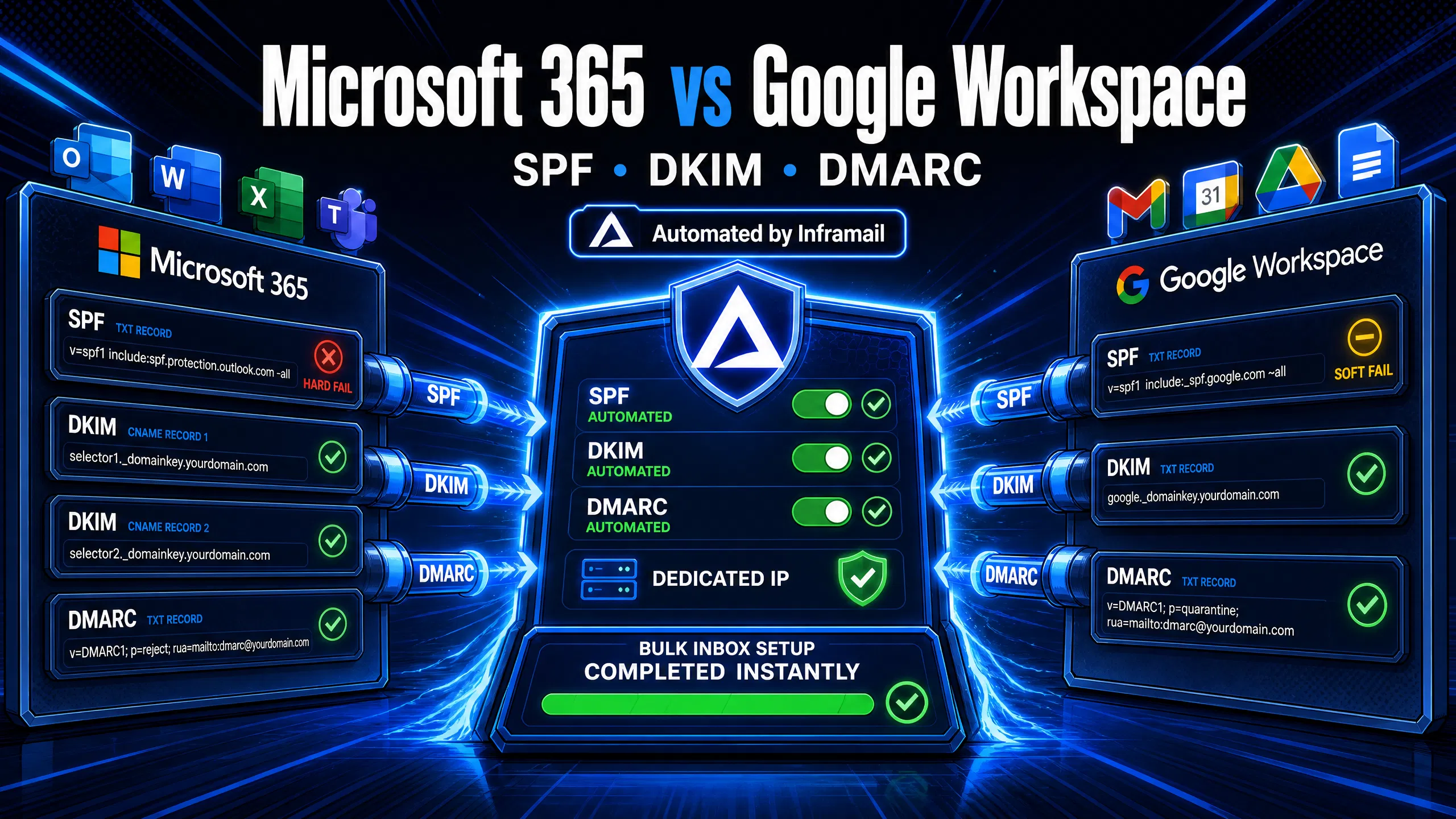
TL;DR: Google Workspace charges $7 to $8.40 per inbox per month. At 50 inboxes that is $350 to $420/month, and that bill scales linearly every time you win a new client. On top of that, manually configuring SPF, DKIM, and DMARC across 50 domains (Google requires a TXT record for each; Microsoft uses a TXT for SPF and two CNAMEs for DKIM) takes 12+ hours of DNS panel work. Inframail automates that entire setup on Microsoft infrastructure. Customer testimonials report rapid inbox provisioning, at a flat $129/month for unlimited inboxes, cutting a 50-inbox bill from $350 to $420/month down to roughly $163/month.
Manual DNS configuration across 50+ domains is an infrastructure problem, not a campaign problem. The fix is automating setup, not hiring more operations staff. Google Workspace and Microsoft 365 have both tightened their authentication requirements significantly, and that tightening is only the visible part of the problem. The hidden cost is the linear pricing model that quietly destroys agency margins as client count grows.
This guide breaks down the exact technical differences in configuring SPF, DKIM, and DMARC on both platforms, how Microsoft's stricter filtering behaves post-May 2025, and how automated Microsoft-based infrastructure saves you over 12 hours of manual DNS work and thousands of dollars annually.
SPF, DKIM, and DMARC are the baseline gatekeeping checks every receiving mail server runs before deciding whether your message lands in the inbox, the junk folder, or gets rejected entirely.
SPF (Sender Policy Framework), governed by RFC 7208 (Request for Comments, the technical specification standard), authorizes specific IP addresses to send mail on behalf of your domain. DKIM (DomainKeys Identified Mail), covered by RFC 6376, attaches a cryptographic signature to each outbound message so receiving servers can verify it was not altered in transit. DMARC ties the two together, tells receivers what to do when either check fails, and delivers XML (Extensible Markup Language) reports back to you for monitoring alignment across your domain portfolio.
How authentication boosts deliverability
Receiving servers check your SPF record to confirm the sending IP is authorized, validate your DKIM signature against the public key published in DNS, and run a DMARC alignment check to confirm the "From" domain matches the authenticated domain. Failures trigger quarantine or rejection. Shared IP pools work like carpool lanes, where one bad actor's spam flags the whole range. Dedicated IPs work like private lanes, where your sending behavior alone determines reputation. Inframail's dedicated vs. shared IPs video covers this distinction in detail.
Google vs Microsoft DNS settings
Factor | Microsoft 365 | Google Workspace |
|---|---|---|
SPF record type | TXT | TXT |
SPF qualifier (common example) | Hard fail ( | Soft fail ( |
DKIM record type | Two CNAMEs | One TXT |
DKIM key rotation | CNAME delegation to Microsoft; rotation requires manual initiation via Defender portal | Manual regeneration required in Admin console |
Bulk sender enforcement (5,000+/day) | Mandatory SPF, DKIM, DMARC from May 2025 | Mandatory SPF, DKIM, DMARC from February 2024 |
Cost per inbox (monthly) | $4 to $7 | $7 to $8.40 |
SPF authorizes specific IP addresses to send email for your domain. Mismatched IPs fail SPF checks, which feeds into DMARC evaluation and triggers spam filtering.
Google Workspace SPF setup guide
Google provides you with a fixed TXT record value, but you still manually add it at your DNS registrar. That is a point many campaign managers miss when evaluating how "automated" Google's setup actually is. Log into your DNS registrar, create a TXT record at the root domain (@), set the value to v=spf1 include:_spf.google.com ~all, save, and verify using MXToolbox SPF lookup after 15 to 30 minutes.
The ~all qualifier is a soft fail. It marks unauthorized senders as suspicious but does not reject them outright, giving receiving servers discretion on how strictly to enforce the rule.
How to set up M365 SPF correctly
Microsoft 365 requires a different include, as detailed in Microsoft Learn's SPF documentation. Log into your DNS registrar, create a TXT record at the root domain (@), set the value to v=spf1 include:spf.protection.outlook.com -all, save, and verify propagation using MXToolbox.
The -all hard fail qualifier instructs receiving servers to reject email from unauthorized IPs. Microsoft's documentation uses this as the standard example when DKIM and DMARC are also in place, creating a three-layer authentication stack.
Critical SPF setup pitfalls
The most important syntax difference: include:_spf.google.com typically consumes 3 to 4 of your 10 allowed DNS lookups, while include:spf.protection.outlook.com typically consumes 2 to 3. Microsoft's SPF is typically slightly more efficient, which matters when you are combining records for dual-platform environments. Nesting too many include: mechanisms causes SPF to "permerror," meaning the record cannot be evaluated and the check fails as if no SPF exists. For 50+ domains, each domain needs its own clean SPF record with lookups counted before publishing. Our infrastructure cost comparison guide outlines how setup complexity scales with domain count.
DKIM adds a cryptographic signature to email headers. The sending server signs outbound messages using a private key. The receiving server retrieves your public key from DNS and validates the signature. If the signature checks out, the email passes DKIM. If not, it fails, which cascades into DMARC failure.
Configuring Google Workspace DKIM
Google generates a key pair in the Admin console, and you export the public key as a TXT record to add manually at your registrar. In the Google Admin console, navigate to Apps, then Google Workspace, then Gmail, then click "Authenticate email." Select your domain, generate a 2048-bit key, copy the TXT record name (google._domainkey) and value, add the TXT record at your DNS registrar, and return to the Admin console to click "Start authentication." It can take up to 48 hours for DKIM authentication to start working consistently after the record is published.
Configuring M365 DKIM records
Microsoft 365 takes a different approach. Instead of a direct TXT record, you publish two CNAME records that point to Microsoft-controlled hostnames, as detailed in Microsoft Learn's DKIM configuration guide. In the Microsoft 365 Defender portal, navigate to Email & collaboration, then Policies & rules, then Threat policies, then Email authentication settings, then DKIM. Select your domain and click "Enable." Microsoft displays two CNAME records: selector1._domainkey and selector2._domainkey. Add both CNAMEs at your DNS registrar, then return to the Defender portal to enable DKIM signing.
The two-CNAME structure delegates key management to Microsoft's infrastructure. Key rotation is initiated from the Defender portal or via PowerShell rather than happening on a fully automatic schedule. This is a meaningful operational difference from Google's TXT record approach. For both platforms, use 2048-bit DKIM keys. They provide stronger authentication than 1024-bit keys and are supported by Cloudflare and Namecheap without requiring record splitting.
Troubleshooting common DKIM errors
The most common DKIM failure after setup is propagation delay. Test using MXToolbox's DKIM lookup with your selector name to confirm the record is resolving before enabling authentication in your sending platform. "DKIM public key not found" errors trace to one of three causes: the wrong selector name in the lookup, a CNAME not yet propagated (Microsoft), or a record accidentally proxied through Cloudflare instead of set to DNS Only. Cloudflare requires DKIM CNAME records to be set to "DNS Only" or Microsoft cannot validate them.
DMARC tells receiving servers what to do when SPF or DKIM fail, and it sends alignment reports back to an address you specify. It is the enforcement layer that makes authentication meaningful.
Google Workspace DMARC setup steps
DMARC is a TXT record published at _dmarc.yourdomain.com with identical DNS syntax on both platforms. Create a TXT record at the _dmarc subdomain, set the value to v=DMARC1; p=none; rua=mailto:dmarc@yourdomain.com, save, and verify at MXToolbox DMARC lookup.
How to set up DMARC for M365
The DMARC record for Microsoft 365 domains uses the same syntax. The key operational difference is in how Microsoft processes the policy. When a recipient domain's MX record points to Office 365, Microsoft's EOP will honor p=reject by quarantining or rejecting failing messages accordingly, though organizations using third-party spam filtering before Office 365 may see different behavior depending on their mail flow configuration. Create the TXT record at _dmarc.yourdomain.com, start with v=DMARC1; p=none; rua=mailto:dmarc@yourdomain.com, and review aggregate reports before moving to stricter enforcement.
Setting strict DMARC for cold email
The three policy tags control how receiving servers handle authentication failures:
p=none: Monitor only. Messages deliver regardless of authentication outcome, but reports are generated. Required starting point during domain warmup.
p=quarantine: Failed messages redirect to junk. Use after at least 90 days of clean
p=nonedata.p=reject: Failed messages are rejected at the SMTP level. Target state for mature, fully warmed domains.
Moving from p=none to p=reject typically takes 9 to 18 months when done correctly, with each phase typically requiring a minimum of 90 days of monitoring. For cold email campaigns, staying at p=quarantine or using p=reject only on fully warmed domains prevents false rejections during the warmup schedule. Our campaign health metrics guide covers how to read inbox placement data alongside DMARC report data.
How to audit DMARC reports for campaigns
DMARC aggregate reports arrive as XML files showing which sources are sending mail for your domain, how many messages passed or failed SPF and DKIM, and which policy was applied. Tools like DMARC Analyzer or MXToolbox DMARC reporting convert raw XML into readable dashboards. For agencies running multiple client domains, a DMARC reporting tool is the only practical way to catch misaligned records before they affect campaign performance.
Microsoft does not apply a single pass/fail check. It runs a composite evaluation combining explicit authentication (SPF, DKIM, DMARC) with implicit signals including sender reputation, historical volume patterns, and behavioral analysis. This is the key reason Microsoft filtering is harder to crack for new cold email domains.
Microsoft's sender reputation system
Microsoft's Exchange Online Protection documentation explains that EOP analyzes incoming mail using authentication results, sender/recipient history, and behavioral signals. A domain with perfect SPF, DKIM, and DMARC but no sending history still faces throttling on first send. This is not a misconfiguration problem, it is a reputation-building requirement that warmup addresses.
Outlook filtering logic for cold email
When emails do not meet Microsoft's authentication standards, EOP applies one of three outcomes depending on the severity of the failure and the domain's reputation score:
Deletion for messages that fail authentication under strict policies.
Delivery to junk folder for domains with missing or misaligned records.
Quarantine for domains with partial authentication or suspicious behavioral signals, held under the rules of a quarantine policy.
Additionally, Microsoft applies throttling for domains sending above the per-domain rate limit before reputation is established. Starting in May 2025, Microsoft began enforcing mandatory SPF, DKIM, and DMARC for bulk senders sending over 5,000 emails per day to Outlook.com addresses, routing non-compliant messages to junk and then to outright rejection. Google had already implemented similar enforcement for Gmail starting February 1, 2024. Agencies running volume campaigns to any list that includes personal or corporate Outlook addresses are directly affected by both sets of requirements.
The deliverability gap explained
On shared IP pools, one bad actor in the same range can pull your IP into a blacklist, and no DNS configuration fixes reputation contamination at the IP level. With dedicated IPs, your sending behavior alone determines ESP trust. Microsoft's EOP tracks IP-level reputation independently from domain reputation, which means clean dedicated IPs remove that variable entirely. Our Unlimited Plan includes 1 dedicated US-based IP, and our Agency Pack includes 3 dedicated US-based IPs.
Some agencies manage portfolios with both Google and Microsoft inboxes running simultaneously across different clients. Combining authentication records for a single domain sending through both platforms requires care.
How to sync authentication across platforms
If a single domain sends through both Google Workspace and Microsoft 365, the SPF record must authorize both sets of sending IPs:
v=spf1 include:_spf.google.com include:spf.protection.outlook.com ~all
Google's include:_spf.google.com typically consumes 3 to 4 DNS lookups. Microsoft's include:spf.protection.outlook.com adds additional lookups. If you also include a warmup tool's sending IPs or a third-party SMTP (Simple Mail Transfer Protocol) relay, you approach the 10-lookup ceiling quickly. Use MXToolbox's SPF lookup to count total lookups before publishing.
For DKIM, selectors are independent and coexist without conflict. Google uses google._domainkey and Microsoft uses selector1._domainkey and selector2._domainkey. All three can exist as separate records on the same domain. A single DMARC record at _dmarc.yourdomain.com covers both sending sources because DMARC alignment checks the "From" header domain against whichever authenticated source (SPF or DKIM) passes.
Testing Gmail vs Outlook inbox placement
Run placement tests separately for Gmail and Outlook inboxes, as filtering logic differs between the two. GMass inbox testing and GlockApps both support multi-inbox testing across Gmail, Outlook, Yahoo, and other providers in a single test run. Run a test after any DNS record change and periodically throughout your warmup period.
A Mail-Tester score of 8+/10 indicates proper record configuration, though actual inbox placement also depends on sender reputation, engagement history, domain age, and IP reputation. GMass testing provides insight into actual Gmail placement behavior. Testing at various stages helps confirm configuration and track reputation development.
The operational gap between Google Workspace and Microsoft 365 is not just technical. It is financial and time-based.
M365 vs. Google Workspace setup speed
Setting up 50 cold email domains manually, including SPF, DKIM, and DMARC record creation across all domains, logging into DNS panels, copy-pasting values, waiting for propagation, and testing, takes 12+ hours. That is time your team spends not building sequences or troubleshooting reply rates.
We automate the entire DNS configuration process for Microsoft environments. Our platform auto-configures SPF, DKIM, and DMARC records without requiring access to any DNS panel. Customer testimonials report rapid inbox provisioning. Our SPF, DKIM, and DMARC setup video shows the automated process in practice, and the Inframail setup tutorial shows the full domain purchase to inbox creation flow with timestamps.
Essential DNS setup for cold email
After domains and inboxes are provisioned through Inframail, the integration with Instantly or Smartlead is straightforward:
In the Inframail dashboard, navigate to your inbox list and click "Export CSV."
The CSV contains IMAP/SMTP credentials, server hostnames, ports, and inbox addresses for every provisioned inbox.
In Instantly, go to Email Accounts, select "Bulk add via CSV," and upload the exported file.
Instantly auto-populates all IMAP/SMTP fields and tests each connection.
Our Smartlead integration guide and compatible sending platforms guide cover both integration paths in detail.
Getting records right is the first requirement. Keeping them verified across 50 to 200 domains without error requires operational discipline.
Wait times for DNS record updates
DNS propagation takes 15 minutes to 48 hours. Before launching campaigns, verify records resolve on DNSChecker.org from multiple geographic nodes, then test configuration using Mail-Tester by sending a test email. A Mail-Tester score of 8+/10 indicates your DNS records are configured correctly, though actual inbox placement also depends on sender reputation, engagement history, domain age, and IP reputation.
Starting campaigns before full propagation causes authentication failures on some receiving servers, which can trigger early spam flags on new domains before they have built any positive reputation. For a step-by-step cold email infrastructure build, Inframail's ultimate cold email infrastructure guide covers the complete stack from domain selection to sending platform integration.
When email verification fails
If MillionVerifier or ZeroBounce flag authenticated domains, check for incomplete propagation, typos in SPF or DKIM values, or an incorrect DMARC rua tag format. Our ZeroBounce vs. NeverBounce comparison guide covers how to interpret verification tool results in the context of cold email deliverability.
"I've been using Inframail for a couple of months and the experience has been really good. I can set-up inboxes quickly while saving money on Google Workspace subscriptions and benefit from great deliverability." - Verified user review of Inframail
Managing SPF and DKIM across domains
Dedicated IP vs. shared IP pools: On shared IP pools, other senders' behavior affects your sending reputation even when your authentication records are correct. A bad actor on the same IP range can pull that IP onto a blacklist, and no DNS configuration resolves reputation contamination at the IP level. Our Unlimited Plan includes 1 dedicated US-based IP and our Agency Pack includes 3 dedicated US-based IPs, isolating your reputation entirely.
TCO comparison at scale: The cost difference between Google Workspace and Inframail grows significantly with inbox count.
Inbox count | Google Workspace (monthly) | Inframail (monthly)\* | Annual savings with Inframail (estimated) |
|---|---|---|---|
50 inboxes | $350 to $420 | $163 | $2,244 to $3,084 |
100 inboxes | $700 to $840 | ~$197 (estimated) | $6,036 to $7,716 (estimated) |
200 inboxes | $1,400 to $1,680 | ~$262 (estimated) | $13,656 to $17,016 (estimated) |
Inframail costs include the $129/month platform fee and estimated domain costs ($5 to $16 per domain per year, amortized). The 50-inbox baseline of $163/month uses $129/month platform fee plus approximately $34/month in domain costs (50 domains at ~$8/year each, amortized monthly). External warmup tools such as Warmbox or Lemwarm run approximately $0.60 to $96 per inbox per month depending on the tool and are required but not included in this comparison.
Google Workspace pricing runs $7 to $8.40 per user per month on Business Starter. Our flat $129/month covers unlimited inboxes, and the cost savings at the platform level more than offset the warmup tool addition for agencies running 50 or more inboxes.
"I personally have over 1,000 email accounts with Inframail for one flat price. Adding all those records would have taken substantial time manually. Instead all records were added quickly through automation." - Verified user review of Inframail
For agencies where infrastructure spend significantly impacts margins, the math on switching is straightforward. For the full context against competing providers:
"So affordable that it will make your unit economics work, even for lower ticket b2b businesses like ours." - Verified user review of Inframail
Authentication configuration is the foundation. We built automated Microsoft infrastructure so you can build that foundation across 50 to 200 domains in minutes instead of days, at $163/month instead of $420. Sign up to Inframail and get started today.
Does Inframail include built-in email warmup?
No, we do not include built-in warmup. You need external tools like Warmbox or Lemwarm, which cost approximately $0.60 to $96 per month per inbox depending on the tool.
What is the cost of the Inframail Unlimited Plan?
The Unlimited Plan costs $129/month on a monthly billing cycle or $90.30/month when billed annually. The Unlimited Plan includes unlimited inboxes and 1 dedicated US-based IP.
How many dedicated IPs do I get with Inframail?
You get 1 dedicated US-based IP on the Unlimited Plan and 3 dedicated US-based IPs on the Agency Pack ($327/month monthly or $228/month annual).
What happens if my Microsoft 365 domain fails DMARC?
When a recipient's MX points to Office 365, Microsoft's EOP will honor p=quarantine by routing failing messages to junk and p=reject by issuing a hard bounce. For new domains, start with p=none for a minimum of 90 days before enforcing stricter policies.
Why does Microsoft require two CNAME records for DKIM when Google only requires one TXT record?
Microsoft uses CNAMEs pointing to Microsoft-managed hostnames so key rotation can be initiated from the Defender portal without requiring you to regenerate and republish records manually. Google's TXT record approach requires you to generate a new key and update the DNS record directly each time rotation is needed.
How long does DNS propagation take for SPF, DKIM, and DMARC records?
Propagation takes 15 minutes to 48 hours. Verify using DNSChecker.org from multiple geographic nodes before running campaigns or testing deliverability.
SPF (Sender Policy Framework): A DNS TXT record specifying which mail servers are authorized to send email on behalf of your domain. Receiving servers check this record during the SMTP handshake to verify the sending IP is permitted.
DKIM (DomainKeys Identified Mail): An email authentication method that adds a cryptographic digital signature to outbound emails, allowing receiving servers to verify the message was sent by the domain owner and not altered in transit. Google uses one TXT record and Microsoft uses two CNAME records for this purpose.
DMARC (Domain-based Message Authentication, Reporting, and Conformance): A protocol that builds on SPF and DKIM to specify how receivers should handle authentication failures (none, quarantine, or reject) and delivers aggregate XML reports back to the domain owner for monitoring.
Dedicated IP: An IP address used exclusively by one sender. Your sending reputation is isolated from other users' behavior, so activity by unrelated senders on shared IP pools cannot affect your deliverability.
Hard fail (-all): An SPF qualifier instructing receiving servers to reject mail from unauthorized IPs. Microsoft's documentation uses this as the standard example format when DKIM and DMARC are also configured.
Soft fail (~all): An SPF qualifier that marks mail from unauthorized IPs as suspicious but does not reject it. This is Google Workspace's default SPF setting.
DNS propagation: The time it takes for a new or updated DNS record to distribute across global DNS resolvers, typically 15 minutes to 48 hours after publishing.