
Inbox Credential Export and Import: Integrating Microsoft 365 with Instantly/Smartlead
Export Microsoft 365 IMAP and SMTP credentials, format CSV files, and bulk-import inboxes into Instantly, Smartlead, or Apollo with fewer setup errors.
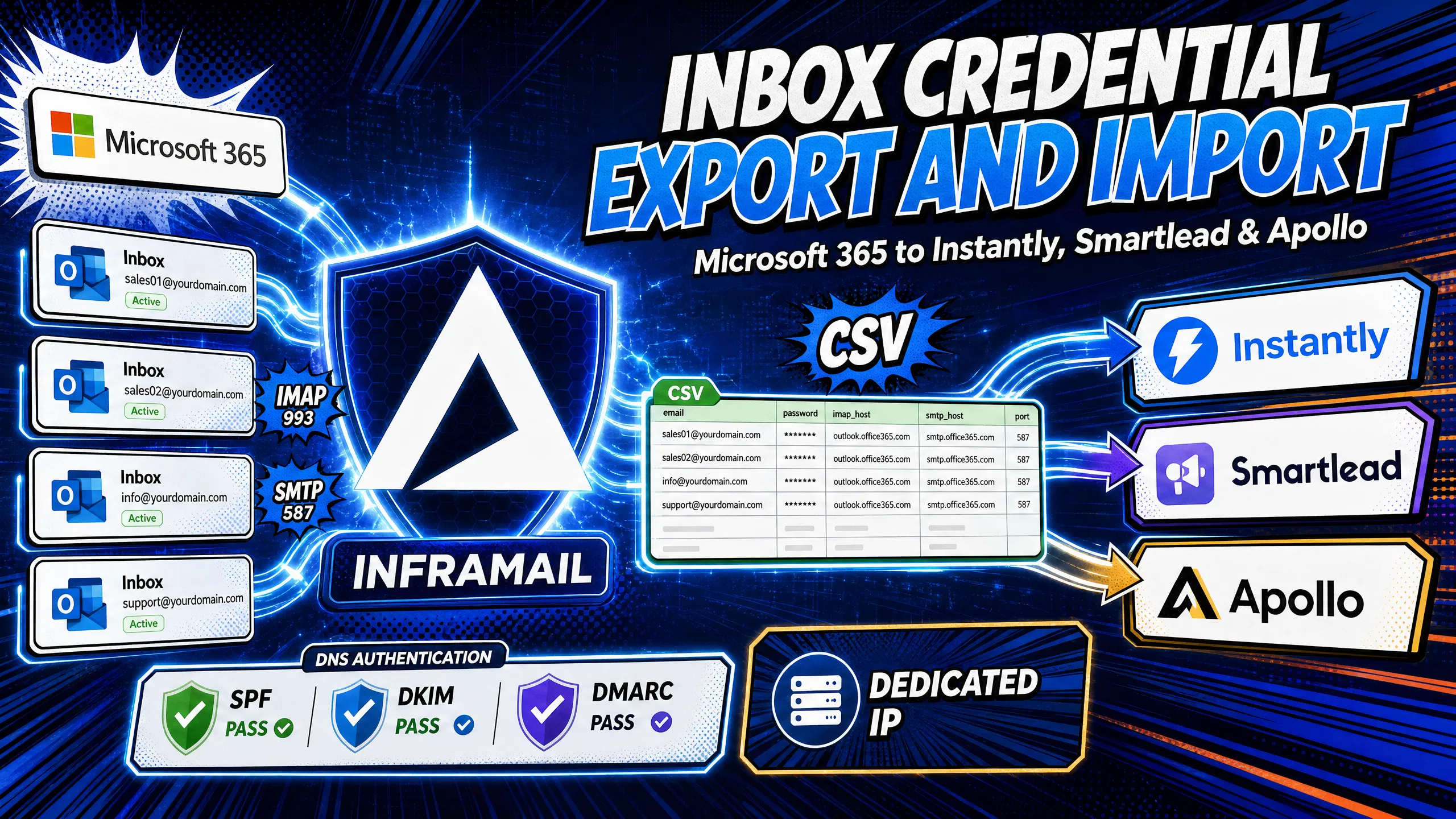
TL;DR: Exporting Microsoft 365 IMAP/SMTP credentials and bulk-importing them into Instantly, Smartlead, or Apollo requires three things: IMAP/SMTP enabled in your M365 admin center, App Passwords generated for each inbox (Microsoft has updated the deprecation timeline, with Basic Authentication for SMTP AUTH set for default disablement by end of December 2026), and a UTF-8 encoded CSV with the correct platform-specific column headers. The biggest time cost is manual setup across dozens of inboxes. Inframail automates the entire pipeline, DNS configuration included, at a flat $129/month for unlimited inboxes, saving agencies managing 50 inboxes $187 to $257 monthly compared to Google Workspace.
Manual credential management for Microsoft 365 inboxes burns hours every time you onboard a new client. Microsoft has updated the deprecation timeline, with Basic Authentication for SMTP AUTH set for default disablement at end of December 2026. Agencies still using username and password logins face a hard deadline. Miss it, and every cold email sequence connecting via SMTP goes dark simultaneously.
This guide gives you the exact steps to export M365 credentials and bulk-import them into Instantly, Smartlead, and Apollo without authentication errors, along with a clear picture of how automating this process with a flat-rate infrastructure provider like Inframail protects your margins as you scale.
Manual inbox setup follows the same pattern every time: log into the M365 admin center, enable IMAP for one user, generate an App Password, copy it, repeat for the next inbox. For 50 inboxes, manual setup can take many hours, covering DNS panels, SPF/DKIM/DMARC records, per-user IMAP enablement, and propagation testing. The Inframail setup tutorial shows how a bulk-first approach cuts setup time by over 85%.
The core shift is treating inbox provisioning as a data operation. You generate all credentials at once, structure them in a single CSV, and push that file to your sending platform in one upload.
Cut setup time by over 85%
Inframail's automated DNS configuration provisions domains with zero manual panel work across all compatible sending platforms, and the CSV export step delivers IMAP/SMTP credentials already formatted for Instantly or Smartlead.
Eliminate configuration errors at scale
Manual copy-pasting of SMTP passwords is the primary source of authentication failures in bulk imports. Errors like a single trailing space, a curly quote introduced by a word processor, or a password copied before it finishes generating can break that inbox's connection. Bulk export tools eliminate this by generating credentials programmatically, with no human in the copy-paste loop.
For operations managers running multiple active clients, the bottleneck often shifts from individual inbox setup to coordinating across different domain registrars and DNS panels simultaneously. The cold email infrastructure monitoring guide covers what you need to track once everything is live.
Before you export a single credential, several conditions must be true: your M365 tenant is configured for external app access, each inbox has IMAP and SMTP enabled, Multi-Factor Authentication is active for users who need App Passwords, and your DNS records are publishing correctly.
Extracting M365 data for cold email
What cold email sending platforms need per inbox is:
IMAP username: The full email address (john@yourdomain.com)
IMAP password: A 16-character App Password
IMAP host and port:
outlook.office365.com, port 993 over SSLSMTP host and port:
smtp.office365.com, port 587 over TLS
Your CSV must contain these four data points per inbox, and everything else in the export process focuses on getting clean values into these fields.
Check SPF DKIM and DMARC readiness
SPF, DKIM, and DMARC records must be correctly configured before you connect any inbox to a sending platform. Inboxes with missing or misconfigured authentication records typically score poorly on Mail-Tester, even if the IMAP connection test passes. Check each domain's DNS records via MXToolbox before importing.
Inframail handles this automatically. SPF, DKIM, and DMARC records are configured at the point of domain provisioning, with no manual DNS panel access required.
Formatting CSVs for platform sync
Instantly and Smartlead may require different column header schemas. You should format the CSV for each platform separately and save the file in UTF-8 encoding. In Excel, that means exporting as "CSV UTF-8 (comma delimited)" rather than the default CSV format, which can corrupt special characters in passwords.
Enable IMAP and SMTP for all inboxes
SMTP AUTH is disabled by default in Microsoft 365 for security reasons. IMAP may also be turned off at the mailbox level. Both must be explicitly enabled before the credentials you export will work in any sending platform.
!\[Microsoft 365 admin center showing IMAP enable toggle for individual mailbox\]\[image\_m365\_admin\_imap\_enable\]
Enable IMAP/SMTP for individual mailboxes
In the Microsoft 365 Admin Center, go to Users, then Active Users. Select the user, click "Mail" in the flyout panel, then click "Manage email apps." Check the box next to IMAP and confirm "Authenticated SMTP" is also checked. Click Save and repeat for each inbox, or use PowerShell to run this in bulk.
Generate App Passwords for IMAP access
App Passwords are 16-character codes that allow external applications to access M365 accounts when Multi-Factor Authentication is active. Because Basic Authentication for SMTP AUTH is being phased out, App Passwords are the correct credential type for cold email infrastructure today.
To generate one:
Go to
https://mysignins.microsoft.com/security-infoLog in with the mailbox account credentials and complete MFA
Click "Add method," select "App password," then click Add
Copy the generated password immediately. Microsoft does not show it again after you close the window. Before users can generate App Passwords, an administrator must confirm the tenant setting "Allow users to create app passwords to sign in to non-browser apps" is checked in the Service settings tab. Consider creating a separate App Password for each sending platform you connect (Instantly and Smartlead each get their own) so that revoking one does not disrupt the other.
Scripted bulk IMAP setup for M365
For 10 or more inboxes, using the admin center UI for each user is not practical. PowerShell for Exchange Online lets you enable IMAP and SMTP AUTH in bulk.
To enable IMAP and SMTP AUTH for a single user:
Set-CASMailbox user@yourdomain.com -ImapEnabled $True
Set-CASMailbox -Identity user@yourdomain.com -SmtpClientAuthenticationDisabled $false
For operations across multiple users, create a text file with one email address per line, then run:
$users = Get-Content "inboxlist.txt"
$users | foreach {Set-CASMailbox -Identity $_ -ImapEnabled $True -SmtpClientAuthenticationDisabled $false}
This processes the entire list in a single command and eliminates the per-user admin center work that makes 50-inbox setups so time-intensive.
Verify IMAP/SMTP ports and settings
Every Microsoft 365 inbox uses the same server addresses regardless of plan or tenant configuration.
Protocol | Server | Port | Encryption |
|---|---|---|---|
IMAP | 993 | SSL | |
SMTP | 587 | TLS (STARTTLS) | |
POP3 | 995 | SSL |
Once IMAP and SMTP AUTH are enabled and App Passwords are generated, compile everything into a CSV. This is the file you'll import into your sending platform.
Required CSV columns for each platform
Instantly and Smartlead may require different column headers. Consult each platform's documentation for the exact schema.
Inframail's CSV download feature exports credentials formatted for direct import, which can eliminate the manual column-mapping step.
CSV template structure for inbox data
Below are representative three-inbox structures for both Instantly and Smartlead-formatted CSVs:
Email,Password,First Name,Last Name,IMAP Host,IMAP Port,SMTP Host,SMTP Port
john@domain1.com,1234AbcDefGh5678,John,Smith,outlook.office365.com,993,smtp.office365.com,587
sarah@domain2.com,5678XyZaBcD9012,Sarah,Johnson,outlook.office365.com,993,smtp.office365.com,587
mike@domain3.com,9012QwErTyUi3456,Mike,Davis,outlook.office365.com,993,smtp.office365.com,587
For Smartlead, a representative three-inbox structure would use the Smartlead column headers:
Email,App Password,IMAP Host,IMAP Port,SMTP Host,SMTP Port,Warmup Enabled
john@domain1.com,1234AbcDefGh5678,outlook.office365.com,993,smtp.office365.com,587,true
sarah@domain2.com,5678XyZaBcD9012,outlook.office365.com,993,smtp.office365.com,587,true
mike@domain3.com,9012QwErTyUi3456,outlook.office365.com,993,smtp.office365.com,587,true
You must save this file as UTF-8 encoded CSV. In Excel, select "Save As" and choose "CSV UTF-8 (comma delimited)" from the file type dropdown.
Cleaning data for inbox migration
Before importing, run a quick data quality check:
Remove trailing spaces from all email address cells
Confirm no curly quotes appear in the password column (a common result of copying from a notes app)
Verify all email addresses follow standard format with no missing domain suffixes
Check that App Passwords are exactly 16 characters with no spaces
Confirm IMAP and SMTP port values are numeric, not text strings like "993 SSL"
Open the file in a plain text editor rather than Excel before uploading. Excel can sometimes auto-format cells in ways that corrupt credential data.
!\[Instantly bulk import interface showing CSV upload and column mapping screen\]\[image\_instantly\_bulk\_import\]
In your Instantly dashboard:
Go to "Email Accounts" in the left navigation
Click "Add Accounts" and select "Bulk Add via CSV"
Upload your UTF-8 formatted CSV file
Confirm each column maps correctly in the preview screen
Click "Import" to begin the connection process
Instantly will attempt to verify each inbox connection immediately after import. The platform shows connection status for each imported inbox. Successful IMAP and SMTP authentication is indicated with status confirmation, while failed inboxes display error messages. A common error at this stage is authentication failure, which typically means either IMAP is not enabled for that mailbox in M365 or the App Password was entered incorrectly in the CSV.
"After that, they give you a clean spreadsheet to upload to your cold email sequencer. Adding over 1,000 accounts literally took a couple of button clicks. I was impressed that all email accounts even connected, let alone how easy it was lol." - Verified user review of Inframail
Smartlead's import workflow differs from Instantly: column headers typically use different names, and the platform includes warmup configuration options.
Instantly and Smartlead may use different column header schemas, so prepare a separate CSV for each platform rather than reusing the same file. Smartlead automatically maps standard fields like name and email, but bulk mailbox imports require columns for email, password, SMTP server, SMTP port, IMAP server, and IMAP port to be included in your CSV before uploading. Reference the column table in Step 2 for the typical Smartlead headers.
In Smartlead, navigate to "Email Accounts," select "Add Account," then choose "Bulk Import." Upload your Smartlead-formatted CSV and map any remaining columns. Smartlead includes a built-in warmup toggle in the import flow. After import, the platform runs connection verification checks, including DNS lookup, SMTP connection, and mailbox ping, before marking inboxes as active. Enable warmup for every inbox before sending any campaign traffic.
The Inframail to Smartlead integration guide covers the exact Smartlead column mapping for Inframail-exported CSVs, which arrive pre-formatted and require no reformatting before upload. For post-migration warmup setup, the Inframail warmup guide covers the recommended ramp schedule: 5 to 10 warmup emails per day in the first week, building toward 20 to 30 per day by the end of Week 2.
Apollo's credential workflow differs from Instantly and Smartlead because Apollo is primarily a contact database and sequence tool rather than an inbox management platform. Apollo connects to sending accounts via OAuth or direct SMTP entry rather than managing IMAP credentials in bulk CSV format.
Apollo supports both OAuth and direct SMTP entry as separate connection methods. Use whichever your sending setup and platform version currently support.
If you're connecting a Microsoft 365 inbox directly to Apollo for sending, go to Settings, then Email Account, and use the SMTP credential fields. Enter the SMTP host (smtp.office365.com), port (587), your inbox address, and the App Password directly in the form. Inbox assignment in Apollo is done per-sequence in the UI.
If the connection fails, confirm that SMTP AUTH is enabled for the inbox in your M365 admin center and that you're entering the App Password rather than the regular account password.
Post-import verification confirms both technical connection and deliverability readiness. A connection status confirmation in your sending platform shows the authentication succeeded, but you should also test deliverability before launching any campaign.
Validate IMAP connection status and test authentication
In Instantly, the Email Accounts dashboard shows connection status for every inbox, confirming successful authentication. If any inboxes show "Disconnected," re-check that IMAP is enabled for that specific mailbox in the M365 admin center and that the App Password in the CSV is correct. For a manual verification outside your sending platform, use Telnet or an IMAP client to confirm the login succeeds, which isolates whether the issue is in the platform's importer or in the M365 configuration itself.
Check inbox placement with Mail-Tester
After connections verify, send a test email from each imported inbox to your Mail-Tester address. Low scores typically indicate a DNS configuration problem. Inframail-provisioned inboxes are configured with SPF, DKIM, and DMARC automatically at setup, which helps ensure strong deliverability scores.
"I can set-up inboxes in 5mins while saving money on Google Workspace subscriptions and benefit from great deliverability. My campaigns on Inframail achieve strong reply rates." - Verified user review of Inframail
Verify SPF/DKIM/DMARC alignment
Use MXToolbox's SuperTool to verify SPF, DKIM, and DMARC records for each sending domain. All three records must be present and correctly formatted before running campaign traffic. The SPF, DKIM, and DMARC setup video from Inframail's founder covers the verification process.
!\[Troubleshooting flowchart for Microsoft 365 IMAP/SMTP sync errors\]\[image\_troubleshooting\_flowchart\]
Fixing credential sync failures
A common cause of "Invalid Credentials" errors is IMAP being disabled at the mailbox level while appearing enabled at the tenant level. These are two separate settings that can conflict.
To fix:
Go to M365 Admin Center, Users, Active Users
Select the affected user, click Mail, then Manage email apps
Confirm IMAP is checked and saved
Re-test the connection in your sending platform
If IMAP shows as enabled but the error persists, run Get-CASMailbox -Identity user@domain.com | Select SmtpClientAuthenticationDisabled in PowerShell to check the current SMTP AUTH state. If it returns True, set it to $false.
IMAP/SMTP authentication failures and Conditional Access
Conditional Access policies in M365 can block SMTP AUTH connections even when the protocol is enabled. The error message typically reads "Authentication unsuccessful, the request did not meet the criteria to be authenticated successfully." Your M365 administrator needs to create a Conditional Access policy exception for the specific mailboxes used for cold email sending.
If MFA is active and you're using the account password rather than an App Password, the connection will typically fail. App Passwords are the recommended credential type when MFA is enabled on the account.
Fixing bulk import rate-limit errors
When importing large numbers of inboxes simultaneously, Microsoft's SMTP AUTH infrastructure can rate-limit connection attempts from new clients. This appears as timeout errors or repeated authentication failures during the import batch, even when individual credentials are correct. Import in batches rather than all at once, and allow time between batches for the M365 tenant's authentication service to clear the queue.
Syncing OAuth with App Password access
OAuth 2.0 is Microsoft's preferred authentication method and becomes the standard after Basic Authentication for SMTP AUTH is disabled. Microsoft extended their deprecation timeline based on customer feedback, with Basic Authentication for SMTP functional through December 2026. For most cold email sending platforms, App Passwords provide a practical bridge today. When your sending platform adds native OAuth 2.0 support, you'll switch to token-based authentication and retire the App Password approach.
Solving CSV encoding mismatch errors
If imported inboxes show corrupted passwords or strange characters appearing in email addresses, the CSV was saved with the wrong encoding. Re-save the file as UTF-8 in Excel via File, Save As, selecting "CSV UTF-8 (comma delimited)." On Google Sheets, download as CSV and the file will be UTF-8 by default.
Resolving IP whitelist issues and maintaining credential sync
Some M365 tenants have Conditional Access policies that whitelist specific IP ranges for SMTP access. If your sending platform's outbound IPs are not on that list, authentication fails even with correct credentials and SMTP AUTH enabled. This is where dedicated IPs provide significant operational advantages. Inframail's Unlimited Plan includes one dedicated US-based IP and the Agency Plan includes three, so you know the exact IP your sending traffic originates from.
For ongoing credential maintenance: when M365 accounts require password rotation, update credentials in your sending platform directly rather than re-importing a new CSV. Importing a new CSV with updated credentials creates duplicate entries rather than updates. Consider rotating App Passwords periodically for active sending inboxes as a security baseline, and immediately rotate any inbox that shows unexpected bounce spikes or authentication errors from an unrecognized IP.
After going live with new inboxes, run blacklist checks on every sending domain via MXToolbox or a dedicated monitoring tool. Inframail's platform includes blacklist monitoring with automated delisting requests when a domain is flagged, eliminating the manual check cycle for agencies managing large domain portfolios.
For agencies managing both Microsoft 365 and Gmail inboxes, do not mix provider types in a single CSV. Create separate files for each provider because server addresses, port numbers, and authentication types differ. Gmail uses imap.gmail.com (port 993) for IMAP and smtp.gmail.com (port 587) for SMTP.
Manual M365 credential management works, but it scales poorly. Every new client batch means more App Passwords generated, more CSVs formatted, and more import troubleshooting.
The cost picture also gets uncomfortable at scale. Google Workspace at $7 to $8.40 per seat runs $350 to $420 per month for 50 inboxes. At 200 inboxes across multiple clients, that's $1,400 to $1,680 monthly in infrastructure alone, before domain costs, warmup tools, or sending platform fees.
Inframail's Unlimited Plan at $129/month covers unlimited inboxes on one dedicated US-based IP, with SPF, DKIM, and DMARC configured automatically at domain provisioning. Infrastructure cost for 50 inboxes runs $163/month (platform + amortized domains), versus $350 to $420 on Google Workspace. Both options require external warmup tools, so that cost applies equally to either setup. That's $2,244 to $3,084 per year per 50-inbox block, and the CSV export arrives pre-formatted for Instantly and Smartlead import, which eliminates the column-mapping work covered throughout this guide.
"Zero issues since. Rock-solid infrastructure, sharp support, genuinely dependable. Highly recommended." - Verified user review of Inframail
For a complete walkthrough of managing 200-plus inboxes at scale, the full automation breakdown video covers the architecture in detail. The Maildoso deliverability comparison and infrastructure cost guide provide additional context if you're evaluating providers before committing. Sign up to Inframail and get started today.
How do I fix the "Invalid Credentials" error when importing M365 inboxes?
This error most commonly occurs because IMAP is disabled at the mailbox level in the M365 admin center, or because MFA is active but you're using the regular account password instead of a generated App Password. Enable IMAP via Admin Center under Users, Active Users, then generate a 16-character App Password at https://mysignins.microsoft.com/security-info and use that in your CSV instead.
Can I use the same CSV format for both Instantly and Smartlead?
No, because Instantly and Smartlead may use different column header schemas for bulk imports. Prepare a separate CSV file for each platform and consult their documentation for the exact format required.
How many inboxes can I bulk-import at one time?
Sending platforms vary in their CSV upload limits. If you are importing a large number of inboxes, consider splitting your data into multiple CSV files to avoid potential rate-limit errors during the M365 SMTP AUTH connection verification phase.
Do I need a separate App Password for Instantly and Smartlead if I'm using both?
It's recommended to create a separate App Password for each sending platform you connect to the same inbox. This way, if one platform's credentials need to be revoked, you can do so without disrupting the other platform's connection.
App Password: A unique 16-character code that allows external applications to access a Microsoft 365 account when Multi-Factor Authentication is active. Your regular account password will not work with SMTP AUTH when MFA is enabled.
IMAP (Internet Message Access Protocol): The protocol cold email platforms use to read messages and monitor replies directly from your inbox. Requires port 993 with SSL for Microsoft 365 connections.
SMTP (Simple Mail Transfer Protocol): The protocol responsible for sending outgoing emails from your Microsoft 365 account through your sending platform. Requires port 587 with STARTTLS for M365 connections.
OAuth 2.0: A secure authentication method that uses tokens instead of passwords to connect email accounts to external tools. Microsoft is moving to require this as the standard after Basic Authentication deprecation completes in December 2026.
Dedicated IP: A unique internet protocol address assigned exclusively to your sending infrastructure. Inframail provides one dedicated US-based IP on the Unlimited Plan and three on the Agency Plan, isolating your sending reputation from other users.
SMTP AUTH: The specific Microsoft 365 setting that enables external applications to send email through your mailboxes. Disabled by default in M365 for security reasons and must be explicitly enabled via Admin Center or PowerShell before any cold email sending platform can connect.
SPF/DKIM/DMARC: Three DNS records that authenticate your sending domains to receiving mail servers. All three must be correctly configured before importing inboxes into any sending platform.