
How to set up cold email infrastructure for your startup (step-by-step)
: Cold email infrastructure takes 12+ hours to set up manually for 50 domains, or minutes with an automated platform. Inframail provisions unlimited Microsoft i
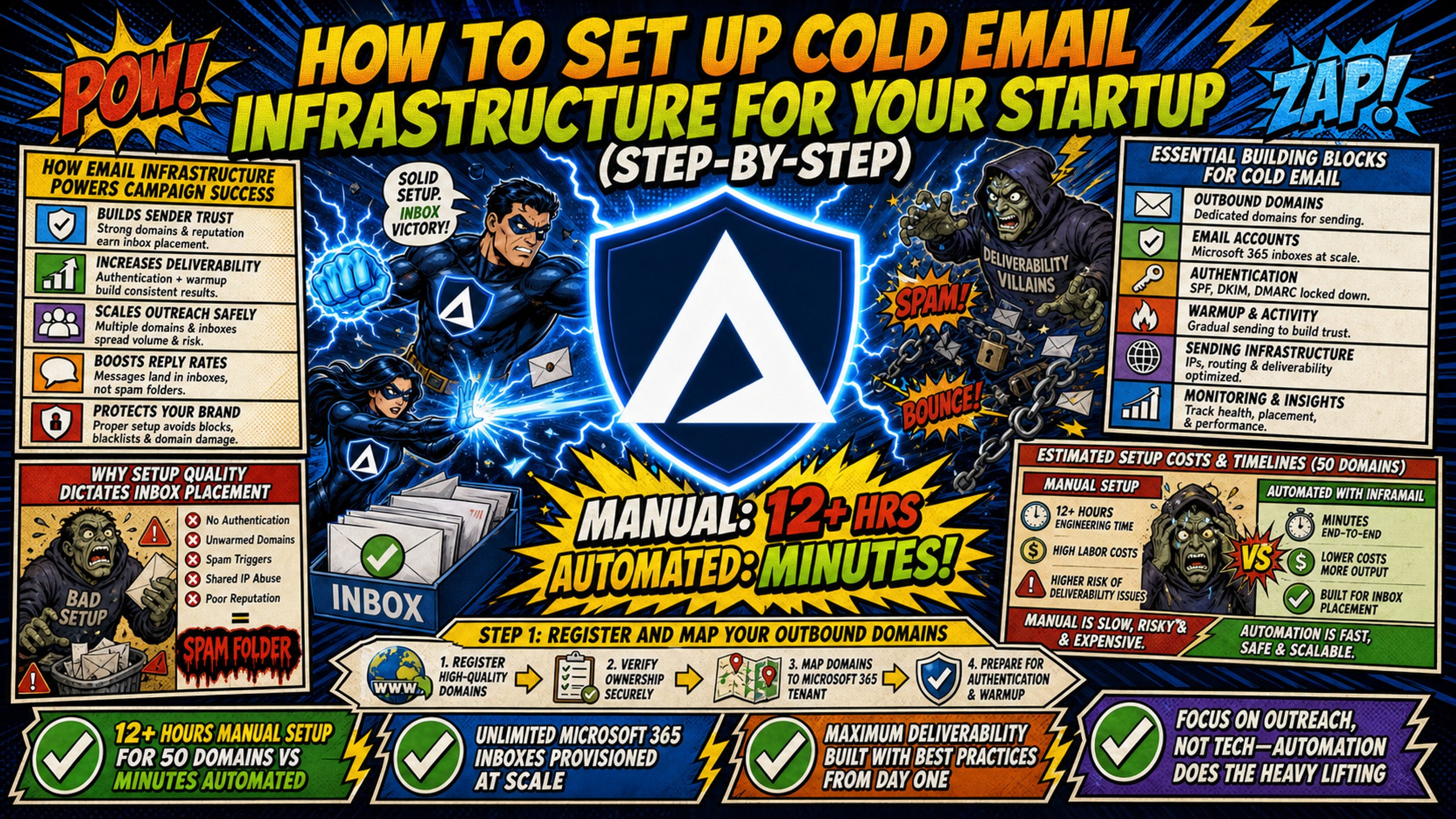
TL;DR: Cold email infrastructure takes 12+ hours to set up manually for 50 domains, or minutes with an automated platform. Inframail provisions unlimited Microsoft inboxes at $147/month flat, and customer testimonials report 10 inboxes live in about 2 minutes. For 50 inboxes across approximately 10-17 domains, Inframail costs $151-$170/month including amortized domain costs, versus $420/month on Google Workspace Flexible Plan before domain costs. That represents $273/month in platform-fee savings. Warmup tools add $15-50 per inbox per month on either setup, and the full path from domain registration to campaign launch runs 14-21 days.
Setting up 50 cold email domains manually takes 12+ hours. The same setup can be automated to the point of 10 inboxes live in about 2 minutes. Poor setup kills campaigns before they start. Missing authentication records, skipped warmup, or contaminated IP addresses send emails straight to spam.
How email infrastructure powers campaign success
Cold email infrastructure is the technical foundation that determines whether your messages reach the inbox or get filtered as spam.
Essential building blocks for cold email
Five components work together:
- Domains: Secondary domains that protect your primary brand from reputation damage
- Inboxes: Individual email accounts that send your cold outreach, typically 3-5 per domain
- Authentication records: SPF, DKIM, and DMARC records that verify you're authorized to send from your domains
- Warmup: The 2-3 week process of gradually increasing send volume to build sender reputation
- Sending platform: Software like Instantly, Smartlead, or Lemlist that manages sequences and tracks replies
Why setup quality dictates inbox placement
Email service providers check authentication records, sender reputation, and sending patterns. Shared IP pools work like carpool lanes where you're affected by other drivers. Dedicated IPs work like private lanes where your behavior alone determines reputation. Inframail provides 1 dedicated US IP on the Unlimited Plan and 3 IPs on Agency Pack, so your sending reputation stays isolated.
Inframail reports 98%+ deliverability across customer campaigns, with 68.3% blacklist delisting success within 48 hours when issues occur.
Estimated setup costs and timelines
| Inbox Count | Manual Setup Time | Automated Setup Time | Google Workspace Cost | Inframail Cost |
|---|---|---|---|---|
| 10 inboxes | 2-3 hours | 2 minutes | $70-$84/month | $148-$152/month |
| 50 inboxes | 12+ hours | Not published | $350-$420/month | $151-$170/month |
| 100 inboxes | 24+ hours | Not published | $700-$840/month | $155-$192/month |
Note: Costs in this table cover the platform fee and domains only. Warmup tools add $15-50 per inbox per month on both Google Workspace and Inframail setups and are not included.
Setting up 50 cold email domains manually takes 12-15 hours of direct labor. Automated platforms handle DNS configuration, inbox provisioning, and credential generation without manual panel work. Domain costs run $5-16 per year. Warmup tools add $15-50 per inbox per month on both setups.
Step 1: Register and map your outbound domains
The wrong domain strategy exposes your primary brand to reputation risk.
How many domains should you purchase
The standard ratio is 3-5 inboxes per domain, with each inbox sending 30-50 emails per day. The safe cold email formula is 3 inboxes per sending domain, 30 emails per inbox per day (up to 50 for experienced operators), and a minimum 2-3 week warmup before the first campaign.
For a startup sending 1,000 emails per day, that works out to roughly 25-30 inboxes across 8-10 domains. This is a derived rule of thumb based on the 30-50 emails per inbox per day range above, not a sourced benchmark. Divide your daily send target by 35, add a 20 percent buffer for mailboxes in warmup, then spread the result across domains at a maximum of three mailboxes per domain.
Best registrars for cold email scaling
Namecheap, GoDaddy, and Cloudflare all support the DNS record types required for cold email authentication. Inframail offers in-platform domain purchasing at $5-16 per year, which eliminates the registrar login step entirely.
Secondary domain naming follows a "lookalike" strategy. Many senders choose a secondary domain that echoes the brand name without copying it exactly, for example try-brand.com, brand-hq.com, or brand-team.com. Cold email secondary domains use 3 trusted TLDs: .com, .io, and .co. Avoid exact brand plus random TLD (brand.xyz screams typosquatting), brand plus number (brand2.com looks suspicious), and free TLDs like .tk or .ml.
Essential DNS settings for cold email
Three authentication records verify you're authorized to send from your domain:
- SPF: Lists which servers can send email from your domain
- DKIM: Adds a digital signature that proves the email wasn't tampered with
- DMARC: Tells receiving servers what to do if SPF or DKIM checks fail
Manual configuration requires logging into your registrar's DNS panel and creating TXT records with specific syntax. Inframail automates SPF/DKIM/DMARC configuration with no DNS panel access required, which eliminates the 12+ hours of manual setup time for 50 domains.
How long until DNS records update
DNS propagation typically takes 24-48 hours for DNS record changes to update fully. Check propagation status using tools like MXToolbox or Google Admin Toolbox. Don't start sending until all three authentication records show as propagated across major DNS servers.
Step 2: Build the sender identity for outreach
This step covers the decisions and setup tasks involved in creating the sender identities behind your outreach.
Google Workspace vs. Microsoft 365
Google Workspace Business Starter costs $7 per user per month on the Annual Plan and $8.40 per user per month on the Flexible Plan. Microsoft 365 Business Basic costs $7 per user per month on annual billing.
For 50 inboxes, Google Workspace Flexible Plan costs $420/month. Microsoft 365 Business Basic costs $350/month on annual commitment. Both scale linearly with inbox count, so 200 inboxes cost $1,680/month on Google Workspace Flexible.
Inframail charges $147/month flat for unlimited inboxes on Microsoft infrastructure. The platform is Microsoft-only, which means teams requiring Google Workspace IPs are not a fit. For agencies comfortable with Microsoft infrastructure, the flat-rate model eliminates per-seat charges.
Scaling inbox counts without hurting safety
Email service providers flag domains with too many inboxes as potential spam operations. The safe limit is 20 to 50 cold emails per inbox per day, which works out to roughly 100 to 250 per domain with 3 to 5 inboxes.
Setting up your cold email profiles
Inbox profiles should match the domain and sending identity. Use real names, consistent titles, and professional photos. Avoid generic names like "info@" or "sales@" that signal bulk sending.
Estimating cold email infrastructure costs
| Inbox Count | Google Workspace | Microsoft 365 | Inframail Platform | Domain Costs (at 3-5 inboxes per domain) | Warmup Tools |
|---|---|---|---|---|---|
| 10 inboxes | $84/month | $70/month | $147/month | $1-4/month | $150-500/month |
| 50 inboxes | $420/month | $350/month | $147/month | $4-23/month | $750-2,500/month |
| 100 inboxes | $840/month | $700/month | $147/month | $8-45/month | $1,500-5,000/month |
For 50 inboxes across approximately 10–17 domains, Inframail costs $151-$170/month, including the $147 platform fee and amortized domain costs. Google Workspace costs $420/month on the Flexible Plan before domain costs, giving Inframail a platform-fee advantage of $273/month, or $3,276 annually. Domain and warmup costs are additional to Google Workspace pricing. At 200 inboxes, Google Workspace costs $1,680/month, while Inframail's platform fee remains $147/month plus domain costs.
Step 3: Prevent spam filters with proper DNS setup
Missing or incorrect authentication records send your emails to spam regardless of content quality.
Essential steps for SPF deployment
SPF lists which mail servers can send email from your domain. A basic SPF record example is "v=spf1 include:_spf.google.com ~all". This record contains three parts: v=spf1 identifies the SPF version, include:_spf.google.com authorizes servers covered by Google's SPF record, and ~all marks other sources as a soft fail.
The record goes in your DNS settings as a TXT record at the root domain (@). Common errors include missing "v=spf1" at the start, wrong include syntax, and exceeding the 10 DNS lookup limit. SPF has a maximum of 10 DNS lookups. Exceeding this invalidates the entire record. For Microsoft 365, the SPF record includes "include:spf.protection.outlook.com". Inframail automates SPF record creation, which eliminates manual syntax errors.
Configuring DKIM for sender authentication
DKIM adds a digital signature to your emails that proves they weren't tampered with in transit. A basic DKIM record example is "v=DKIM1; k=rsa; p=" where PUBLIC_KEY_FROM_YOUR_PROVIDER is a placeholder. Your email provider generates the actual public key and selector.
The record goes in DNS as a TXT record at selector._domainkey.yourdomain.com. Common errors include wrong selector path, split TXT records that break the key, and using the wrong public key format. Inframail generates and configures DKIM records automatically during inbox provisioning.
Preventing spoofing with DMARC
DMARC tells receiving servers what to do when SPF or DKIM checks fail. A basic DMARC record format is "v=DMARC1; p=none; rua=mailto:dmarc@yourdomain.com".
The policy (p=) has three options: none (monitor only), quarantine (send to spam), or reject (block entirely). Start with p=none to monitor authentication failures without affecting delivery, then move to quarantine or reject once you've verified all legitimate sending sources.
The record goes in DNS as a TXT record at _dmarc.yourdomain.com. DMARC record syntax must start with v=DMARC1. Common errors include wrong Name/Host field and missing the rua tag.
Testing your email authentication setup
Two free tools verify SPF, DKIM, and DMARC configuration:
- **MXToolbox:** Offers SPF Record Check, DKIM Check, and DMARC Record Test as diagnostic tools that parse records for a domain name.
- **Google Admin Toolbox:** Google's own troubleshooting suite for Google Workspace. Check MX validates MX records and Dig runs web-based DNS lookups against your domain.
Run all three checks after configuring records and before starting warmup. Fix any errors before proceeding, since authentication failures during warmup damage sender reputation. Inframail's dashboard shows DNS record status across all domains, which eliminates the need to check each domain individually.
Step 4: Automate your inbox warmup schedule
Warmup builds sender reputation by gradually increasing send volume over 2-3 weeks. Skipping warmup lands your emails in spam and damages domain reputation.
Avoiding spam filters with proper warmup
The email warm-up process takes 14 days minimum and creates a controlled history of positive engagement. Warmup tools like Warmbox, Lemwarm, and MailReach automate this by sending emails between accounts in their network. Inframail does not include built-in warmup. The platform requires external warmup tools at $15-50/month per inbox.
Connect your inboxes to a warmup tool immediately after provisioning. Inframail's guide to warming up your inboxes walks through the specific configuration steps.
Optimal warmup duration for new domains
Warm up a new email domain for at least 14 days before you send a single cold email, then build cold volume slowly over another 14 days. The full warmup period runs 2-3 weeks minimum, with 4 weeks being safer for high-volume sends.
A 14-day email warm-up ramp schedule shows Days 4-7 at 10 to 15 emails per day. Sources vary on this range, from 5-10 emails per day to 15-25 emails per day, so treat it as a starting point. Days 11-14: 20 to 25 emails per day. After the initial warm-up phase of 14 days, start with sending 40 emails per day and gradually increase the volume until you reach a maximum of 100 emails per day for cold email outreach.
Estimating total warmup infrastructure spend
| Inbox Count | Warmup Cost/Month (Low) | Warmup Cost/Month (High) |
|---|---|---|
| 10 inboxes | $150 | $500 |
| 50 inboxes | $750 | $2,500 |
| 100 inboxes | $1,500 | $5,000 |
MailReach's all-in-one plan runs $25 per mailbox for the smallest teams and drops to $16 at scale and covers warmup plus spam testing. Dedicated cold email infrastructure providers charge roughly $2.50 to $4 per mailbox per month for basic warmup. Warmup is an ongoing cost, not a one-time setup fee.
Key metrics for inbox warmup success
Three metrics indicate warmup progress:
- Inbox placement rate: Target 90%+ before starting cold sends
- Spam rate: Target under 2%
- Reply rate: Target 10-20% during warmup
Once your heat score hits 85+ after 14 days, you can start sending cold outreach. Don't launch campaigns until inbox placement rate consistently exceeds 90% across all inboxes.
Step 5: Import SMTP data to your outreach tool
Credential export and import must be clean to avoid authentication errors that delay launch.
Locating SMTP and IMAP server settings
For Google Workspace, IMAP host is imap.gmail.com (port 993) and SMTP host is smtp.gmail.com (port 587). For Microsoft 365, IMAP host and port should be outlook.office365.com, port 993 over SSL, and SMTP host and port should be smtp.office365.com, port 587 over TLS.
Inframail provisions each inbox with IMAP/SMTP credentials automatically and exports all credentials to CSV for direct import to sending platforms.
Prepare your CSV for email platforms
Sending platforms require specific column headers for bulk import. Smartlead's mailbox import uses fields for email, password, SMTP host, SMTP port, IMAP host, and IMAP port, so confirm the exact header names in Smartlead's mailbox import template before you upload. Instantly provides its own CSV template for email account imports, so download that template from the account import screen and match its column headers. Header names must match exactly, including capitalization.
Format your file with columns for email, password, SMTP server, SMTP port, IMAP server, and IMAP port. For Microsoft 365, enter an App Password in the password field instead of the account password. Inframail exports credentials to CSV with the IMAP and SMTP settings pre-filled, but Instantly and Smartlead can use different column header schemas, so check the headers against each platform's template before you upload.
Mapping credentials to your email tool
Import the CSV file into your sending platform's inbox management section. In Instantly, go to Email Accounts, click Add New, select Bulk Import, and upload the CSV. In Smartlead, go to Email Accounts, click Add Email Account, select Import from CSV, and upload the file.
Failed connections usually indicate wrong password format (using account password instead of App Password for Microsoft 365) or incorrect IMAP/SMTP settings. Inframail's CSV export includes pre-configured IMAP and SMTP settings for Microsoft infrastructure, so the import maps to the platform's expected fields on the first try, reducing failed connection errors. The platform supports credential export to Instantly and Smartlead with functional IMAP/SMTP credentials.
Test sending paths for deliverability
Send test emails to seed accounts before launching full campaigns. Send 5-10 test emails from each inbox to your seed accounts across Gmail, Outlook, and Yahoo. Check inbox placement, spam folder, and promotions tab. If emails land in spam, stop sending and troubleshoot authentication records or warmup status before proceeding. Test sending also verifies that IMAP sync works correctly, so replies appear in your sending platform.
Dependencies for rapid campaign readiness
This section brings the earlier steps together into a launch plan, a list of common mistakes, and a final readiness check.
7-day cold email setup schedule
| Day | Task | Time Required |
|---|---|---|
| Day 1 | Purchase domains, provision inboxes | 2 minutes (automated) or 2-3 hours (manual) |
| Day 2 | Configure SPF/DKIM/DMARC records | 0 minutes (automated) or 3-4 hours (manual) |
| Day 3 | Verify DNS propagation, connect warmup tools | 1 hour |
| Days 4-17 | Warmup period (14 days minimum) | Ongoing |
| Day 18 | Export credentials to CSV, import to sending platform | 30 minutes |
| Day 19 | Test sends to seed accounts, verify inbox placement | 1 hour |
| Day 20+ | Launch campaigns at reduced volume, ramp up over 7 days | Ongoing |
Automated setup compresses Days 1-2 into minutes. The warmup period depends on domain age and sending history, not on setup method. This schedule uses the 14-day minimum, and brand-new domains with new inboxes often need longer.
Critical pitfalls in domain configuration
Four errors cause most deliverability problems:
- Using your primary domain for cold email: Always use secondary domains.
- Missing DMARC record: Create a DMARC record even if you start with p=none.
- Wrong SPF syntax: Test with MXToolbox before proceeding.
- Skipping warmup: Warmup is not optional.
SPF validation fails due to wrong SPF syntax or missing provider include. Verify you included your email provider's SPF record, ensure syntax starts with v=spf1 and ends with ~all or -all.
The essential warmup readiness checklist
Verify each item before launching campaigns:
- Domains registered and DNS records configured (SPF, DKIM, DMARC)
- Inboxes provisioned with correct profiles (name, title, photo)
- Authentication records verified with MXToolbox or Google Admin Toolbox
- Warmup tools connected and running for 14+ days
- Inbox placement rate above 90% across all inboxes
- Credentials exported to CSV and imported to sending platform
- Test sends to seed accounts show inbox placement
- IMAP sync verified (replies appear in sending platform)
Inframail automates the first three items on this checklist, which eliminates 12+ hours of setup time for 50 domains. Support is available 16 hours a day, 7 days a week from real people when you need help with configuration.
Get started with Inframail
Inframail is a flat-rate Microsoft email infrastructure provider for agencies and startups running cold email at scale. The Unlimited Plan costs $147/month for unlimited inboxes and includes automated SPF/DKIM/DMARC configuration, 1 dedicated US IP, and hands-on support.
Watch this case study video and see how Inframail helped a client quickly set up domains and improve cold email deliverability across three agencies and their clients.
Sign up to Inframail and get started today.
FAQs
How long does cold email infrastructure setup take?
Manual setup takes 12+ hours for 50 domains. Automated setup provisions 10 inboxes in about 2 minutes. Full warmup adds 14-21 days before you can launch campaigns at full volume.
What does cold email infrastructure cost per month?
Inframail costs $147/month flat plus $5-$16 per domain annually. For 50 inboxes across approximately 10-17 domains (3-5 inboxes per domain), the total is around $151-$170/month before warmup. Google Workspace costs $350-$420/month for 50 inboxes, excluding domain costs. External warmup tools add $15-$50 per inbox monthly on either setup.
Can I use free email providers for cold outreach?
No. Free providers like Gmail and Yahoo have strict sending limits and aggressive spam filtering. Use dedicated domains and inboxes to control sender reputation and scale beyond free tier limits.
How many domains should I buy for my startup?
For 1,000 emails/day, you need roughly 25-30 inboxes across 8-10 domains at 3-5 inboxes per domain. Divide your daily send target by 35, add a 20% buffer, then spread across domains at 3 inboxes per domain. These figures are a derived rule of thumb, not a sourced benchmark.
What happens if I skip the warmup period?
Emails land in spam immediately because new inboxes have zero sender reputation. Domain reputation drops, and recovery requires a period of reduced sending.
Key terms glossary
SPF (Sender Policy Framework): A DNS record that lists which mail servers can send email from your domain. Prevents spammers from forging your domain in the "From" field.
DKIM (DomainKeys Identified Mail): A digital signature added to emails that proves they weren't tampered with in transit. Uses public-key cryptography to verify authenticity.
DMARC (Domain-based Message Authentication): A DNS record that tells receiving servers what to do when SPF or DKIM checks fail. Policies include none (monitor), quarantine (spam folder), or reject (block).
Dedicated IP: An IP address used exclusively by your inboxes. Your sending behavior alone determines reputation, unlike shared IP pools where other users affect you.
Shared IP pool: IP addresses used by multiple senders. One bad actor spamming gets the whole range flagged, affecting all users on that IP.
DNS propagation: The time required for DNS record changes to spread across all servers on the internet. Typically takes 24-48 hours for full propagation.
Inbox placement rate: Percentage of sent emails that land in the recipient's inbox versus spam folder. Target 90%+ for cold email campaigns.
Warmup: The 2-3 week process of gradually increasing send volume from new inboxes to build positive sender reputation before launching cold campaigns.
Blacklist: A database of IP addresses or domains flagged for sending spam. Being blacklisted severely damages deliverability until you complete the delisting process.
CSV export: Downloading inbox credentials (email, password, SMTP/IMAP settings) in comma-separated values format for bulk import into sending platforms like Instantly or Smartlead.