
Diagnosing SPF, DKIM, and DMARC Failures: Troubleshooting Guide for Cold Email Ops
Troubleshoot SPF, DKIM, and DMARC failures for cold email ops with Mail-Tester, raw headers, alignment checks, DNS fixes, and propagation steps.
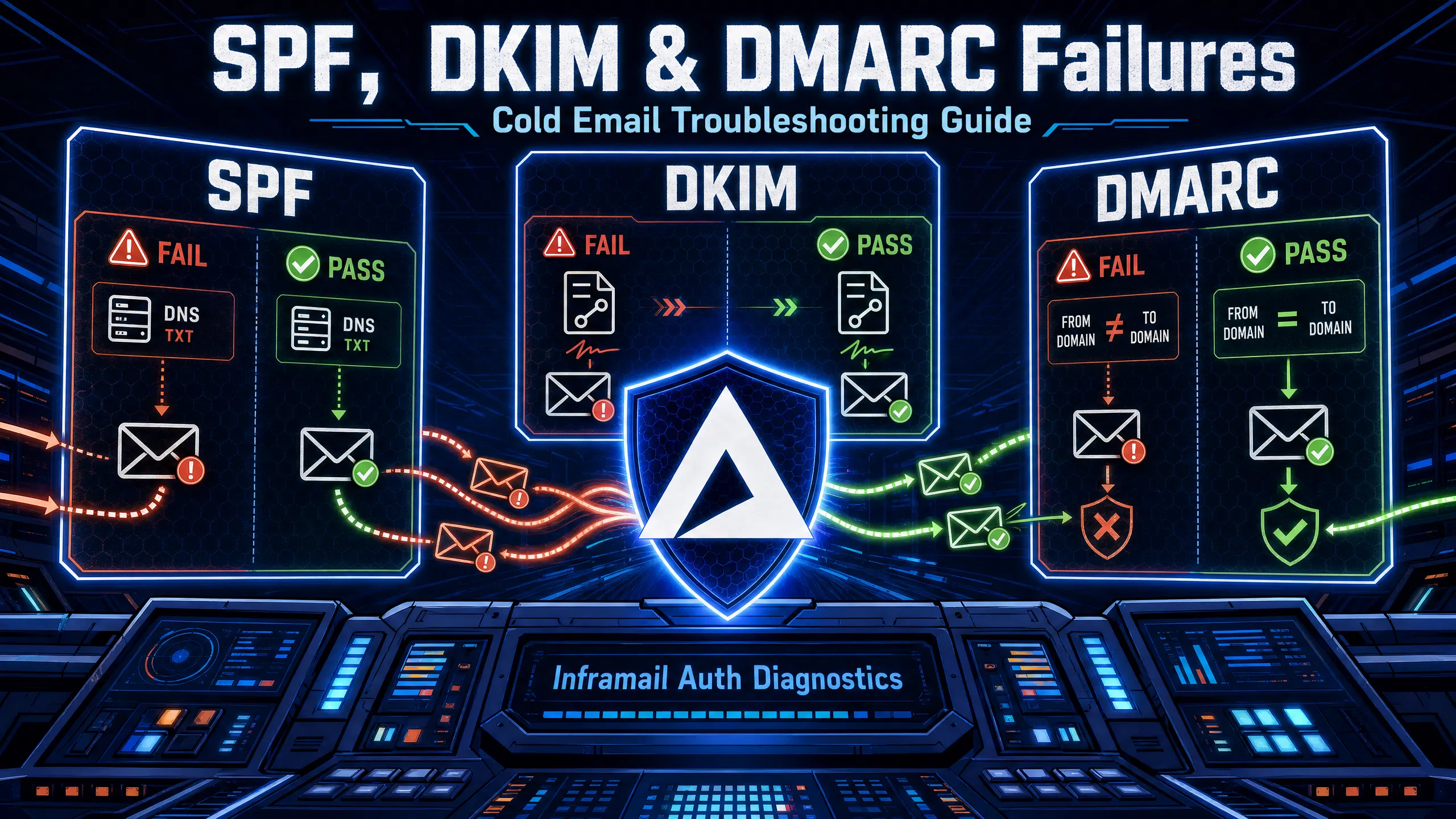
TL;DR: SPF and DKIM passing is not enough. Both must align with your From address domain to satisfy DMARC, and DMARC alignment is what Gmail and Outlook actually enforce. Start every diagnosis with Mail-Tester and raw header inspection before touching any DNS
include:record.
Setting up cold email domains manually is time-consuming DNS panel work. One misconfiguration across that stack pauses client campaigns with no immediate visibility into why.
When cold email campaigns fail, the root cause is almost always a misconfigured or misaligned authentication record. Diagnosing these errors manually using raw headers and testing tools is a skill every outbound operator needs. This guide shows you how to find and fix these errors today, and how to automate the entire process moving forward.
SPF (Sender Policy Framework), DKIM (DomainKeys Identified Mail), and DMARC (Domain-based Message Authentication, Reporting, and Conformance) are email authentication protocols that work through DNS records. When any one of them fails or misaligns, inbox providers may treat your mail as suspicious or undeliverable. The potential impact includes lower inbox placement, higher spam folder rates, and deliverability issues that affect campaign performance.
Diagnostic toolkit for SPF, DKIM, and DMARC
Before you touch a single DNS record, run your domain through these tools:
Mail-Tester: Sends your email to a test address and returns a scored report with SPF, DKIM, and DMARC authentication details. Start here every time.
MXToolbox: Lookup tool for SPF, DKIM, DMARC, blacklists, and MX records. Use it to verify a record is live after DNS propagation.
DMARCLY: Parses DMARC aggregate reports so you can see which IPs are sending on your behalf and whether they're passing alignment.
GlockApps: Tests inbox placement across Gmail, Outlook, and Yahoo simultaneously to give you a real inbox rate percentage, not just an authentication pass.
Step-by-step SPF, DKIM, DMARC check before sending
Run this three-step check before you fire a single email from a new domain:
Send a test email from your configured inbox to your Mail-Tester address. A high score on Mail-Tester provides a good baseline for authentication health.
Open MXToolbox and run SPF, DKIM, and DMARC lookups for the sending domain. Confirm all three records resolve.
Check the
Authentication-Resultsheader in the returned test email. Confirm you see "spf=pass," "dkim=pass," and "dmarc=pass" before importing credentials to Instantly or Smartlead.
For a full walkthrough of this setup process, the SPF DKIM DMARC setup video shows how to configure all three records using automated provisioning.
Mail-Tester is the fastest first step for diagnosing authentication failures. The workflow is simple: generate a unique test address, send your production email to it from your configured inbox, and wait for scored results.
Evaluating SPF and DKIM status
The authentication tab in Mail-Tester breaks your result into three rows: SPF, DKIM, and DMARC. Each shows the status alongside the specific record that was checked. If SPF shows "pass" but DKIM shows "neutral" or "none," your DKIM TXT record may not exist at the expected subdomain or your selector name may be incorrect.
Why your email fails authentication
The most common Mail-Tester failure patterns are:
Missing DKIM record: The TXT record was never created at
selector._domainkey.yourdomain.com,the expected DKIM subdomain location.SPF syntax error: A typo in your TXT record (an extra space, missing colon, or wrong mechanism) can cause a parse failure.
No DMARC record: You have SPF and DKIM configured, but no
_dmarc.yourdomain.comDMARC TXT record exists at the expected location. Google requires DMARC for senders sending more than 5,000 messages per day to Gmail accounts.
Fixing SPF, DKIM, and DMARC failures
Once Mail-Tester identifies a failure, the fix depends on the failure type. The sections below cover specific fixes for SPF syntax errors, DKIM selector mismatches, DMARC alignment failures, and cases where all three fail simultaneously.
For context on what healthy metrics look like once records are correctly configured, the campaign spam monitoring guide in Inframail's help center covers the key indicators to track.
Passing SPF and DKIM is not enough on its own. DMARC typically requires that the domain authenticated by SPF or DKIM aligns with the domain in your From address. This is the most commonly misunderstood failure in cold email operations.
DMARC alignment typically comes in two modes: relaxed (where subdomains of the parent domain may match) and strict (where exact match is required), as defined in RFC 7489. Relaxed mode is commonly used in cold email setups.
Finding your DMARC aggregate reports
Your DMARC TXT record should include a rua= tag pointing to an email address where aggregate reports are delivered. These XML reports typically show IPs that sent mail using your domain, authentication results each received, and whether the policy was applied. DMARCLY can parse these reports into readable dashboards so you can spot alignment failures without decoding raw XML.
Fixing SPF and DKIM alignment errors
The most common alignment failure in cold email happens when you send through a third-party platform. The platform may set the Return-Path (the envelope sender) to its own bounce-handling domain, SPF may pass for that platform's domain, but the From address shows your domain. In this scenario, SPF authenticates the platform's domain rather than yours, so DMARC alignment can fail even though SPF technically passes.
To fix SPF alignment: configure a custom Return-Path subdomain on your sending platform using your own domain (for example, bounce.yourdomain.com) if your platform supports this. To fix DKIM alignment: ensure your sending platform signs outgoing mail with a DKIM key where the d= value matches your From domain. DMARC typically passes when either SPF or DKIM aligns, so configuring custom DKIM signing is often the most reliable path because DKIM can survive forwarding where SPF may break.
How to spot sending domain mismatches
The table below shows how alignment affects the DMARC result across four common configurations, assuming the From header is yourdomain.com in each row:
From header | Return-Path | DKIM d= | DMARC result |
|---|---|---|---|
Pass (SPF + DKIM align) | |||
Pass (DKIM aligns) | |||
Fail (neither aligns with From) | |||
(no DKIM) | Pass (SPF aligns) |
The dedicated vs shared IP video also covers how dedicated infrastructure affects the sending domain alignment picture when managing authentication across dozens of domains.
When Mail-Tester doesn't give you enough detail, read the raw email headers directly. This bypasses third-party interpretation and shows you exactly what the receiving mail server recorded.
How to view raw email headers in Gmail and Outlook
In Gmail: Open the email, click the three-dot menu in the top right corner, then select "Show original." The full raw header typically appears in a new tab displaying DKIM, SPF, and DMARC results as separate lines.
In Outlook: Open the email, click File, then Properties. The Internet Headers box typically shows the full raw header content.
Troubleshooting SPF validation errors
In the raw header, look for the Received-SPF line and the Authentication-Results line.
A passing result looks like this:
Received-SPF: pass (google.com: domain of sender@yourdomain.com designates 192.0.2.1 as permitted sender)
A softfail looks like this:
Received-SPF: softfail (google.com: domain of sender@yourdomain.com does not designate 192.0.2.1 as permitted sender)
A softfail (~all) typically signals that this IP probably shouldn't pass, and receiving servers may divert the email to spam. A hardfail (-all) gives receiving servers grounds to reject the email at the SMTP level. As RFC 7208 defines the SPF result separately from DMARC enforcement, DMARC treats both softfail and hardfail identically as SPF authentication failures, so the DMARC outcome is the same regardless of your all qualifier.
Fixing broken DKIM authentication
Find the DKIM-Signature line in the raw header. The d= value shows the signing domain, and the s= value shows the selector. If the selector doesn't match what your DNS panel shows, verification may fail. If the body hash fails (the bh= value doesn't match), an intermediate mail server may have modified the email body between signing and delivery. Trace the mail flow path in the Received: headers to identify where the modification occurred.
Troubleshooting DMARC record rejections
In the Authentication-Results header, look for the dmarc= field. A rejection or quarantine policy actively blocking your emails appears as:
dmarc=fail (p=REJECT) header.from=yourdomain.com
If you see this and your DMARC policy is set to p=reject, your emails may be blocked outright. Temporarily move the policy back to p=none to restore delivery while you fix the underlying SPF or DKIM alignment issue.
The sections below cover the most frequent error types and the specific steps to resolve each one.
SPF permerror: Too many DNS lookups
The SPF 10-lookup limit is a protocol constraint defined in RFC 7208. Exceeding 10 lookups typically causes a permerror, and your emails may be rejected or marked as spam. The mechanisms that typically count toward the limit are include:, a, mx, ptr, and exists. The ip4:, ip6:, and all mechanisms generally do not count.
A typical agency adding tools like Instantly, a CRM, a marketing platform, and a support tool can exceed 10 lookups without realizing it. The fix is SPF flattening: resolving each include: mechanism to its underlying IP addresses and replacing the mechanism with direct ip4: entries. After flattening, your record looks like this:
v=spf1 ip4:192.0.2.1 ip4:198.51.100.0/24 ip4:203.0.113.5 ~all
No include statements, no DNS lookups beyond the initial TXT record fetch. You stay below the limit and avoid permerror.
DKIM fail: Selector mismatch or missing record
The receiver typically queries DNS at {selector}._domainkey.yourdomain.com to retrieve the public key. If that TXT record doesn't exist, or if the selector name in the outgoing email doesn't match the selector in DNS, DKIM may fail. Verify the exact selector your sending platform uses, then confirm a TXT record exists at that exact subdomain using MXToolbox.
Fixing simultaneous SPF, DKIM, and DMARC errors
When all three fail at once, the most common cause is that the domain is brand new and no DNS records have propagated yet, or all three records were deleted or corrupted. Start from scratch: add SPF first, then DKIM, wait at least 48 hours for both to propagate as Google's sender guidelines recommend, then add DMARC at p=none and confirm all three pass in Mail-Tester before ramping send volume.
Authentication failures don't just push emails to spam. Sustained failures contribute directly to domain and IP blacklisting, which is a harder problem to recover from. The infrastructure monitoring guide covers how to track domain health before failures escalate.
Why failed SPF and DKIM trigger spam filters
Gmail and Outlook use authentication results as a primary trust signal. Unauthenticated mail from a domain that consistently fails SPF or DKIM may get filtered more aggressively over time as the provider builds a reputation profile for that domain.
Preventing domain blacklists with DMARC
A properly configured DMARC policy helps prevent spoofing of your From domain. Without it, anyone can forge your From address and send spam that looks like it came from your domain, damaging your reputation without your knowledge. DMARC p=quarantine or p=reject closes this vector and signals to inbox providers that you actively manage your domain's authentication posture. For recovering from a Microsoft blacklist specifically, the Microsoft blacklist removal guide covers the delisting process and steps to prevent re-listing.
Diagnosing auth-related domain blacklists
If a domain gets listed on Spamhaus and the listing is tied to reputation rather than a specific spam complaint, check whether authentication failures were present before the listing. Shared IP pools create a compounding risk: another sender on the same pool fails authentication at scale, the IP range gets flagged, and your domains inherit the reputation damage. Dedicated IPs isolate your sending behavior as the sole factor determining your reputation on that IP.
The sections below walk through the configuration steps for each record type and how to confirm your changes are live.
Fixing SPF syntax and lookup errors
Most SPF errors originate in manual configuration. A missing space before a mechanism, a colon where there should be an equals sign, or additional include: statements can break deliverability across every inbox on that domain. Inframail's automated DNS setup configures SPF, DKIM, and DMARC records without any manual panel work, removing the typo risk entirely. As one operator put it:
"InfraMail makes it remarkably easy to purchase domains, configure them correctly, create inboxes, and initiate warm-up immediately. The level of automation is exceptional and clearly designed for serious operators; it removes friction and allows you to focus on execution rather than setup." - Verified user review of Inframail
Step-by-step DKIM key rotation
Rotate DKIM keys every 6-12 months or immediately after a security concern. The safe rotation process:
Generate a new DKIM key pair on your email platform.
Add the new public key as a TXT record at a new selector (for example,
selector2._domainkey.yourdomain.com).Wait for the new record to propagate and confirm it resolves in MXToolbox.
Switch your sending platform to sign with the new selector.
Leave the old selector TXT record in DNS for at least 48 hours to cover any in-flight emails signed with the old key.
Delete the old selector record after 48 hours.
Adjusting DMARC policy from none to quarantine to reject
A safe ramp timeline for DMARC enforcement:
Weeks 1-4: Start with
p=noneandrua=reporting. Collect aggregate reports and confirm SPF and DKIM pass rates are consistently high for all legitimate sending sources.Weeks 5-8: Consider moving to
p=quarantineand monitor for any legitimate mail sources that start hitting spam folders.Week 9 onward: Move to
p=rejectonce aggregate reports confirm legitimate mail is authenticating correctly. Google's documentation confirms that SPF and DKIM should be live for at least 48 hours before enabling DMARC at any enforcement level.
Verifying DNS changes and propagation
DNS propagation typically completes within 24-72 hours for full global distribution, though major providers may pick up changes more quickly as their caches refresh. Set a low TTL (time-to-live, the duration DNS resolvers cache a record before checking for updates) of 300-600 seconds before making changes to speed up propagation if needed, then reset to a normal TTL after confirming records are live. Use MXToolbox to check propagation status from multiple DNS resolvers simultaneously.
The cost of managing this manually across 50 domains adds up fast, and so does the infrastructure bill underneath it. For context on where infrastructure spend sits across providers, the cold email infrastructure cost breakdown compares seven platforms in detail. Here's how the numbers look at common inbox counts:
Provider | 50 inboxes/mo | 100 inboxes/mo | 200 inboxes/mo |
|---|---|---|---|
Google Workspace | $350-420 | $700-840 | $1,400-1,680 |
Maildoso | ~$113-166 | ~$226-332 | ~$452-664 |
Inframail | $163 total\* | $229 total\* | $403 total\* |
\*Inframail total = $129 platform fee + estimated domain costs (50 domains = ~$34, 100 domains = ~$100, 200 domains = ~$274) + external warmup tool (typically $15-50/month). Domain costs vary by registrar and TLD. Warmup not included in platform fee.
Google Workspace Business Starter is priced at $7-8.40 per user per month, so 50 inboxes runs $350-420/month before any additional tooling. Inframail's Unlimited plan costs $129/month for unlimited inboxes regardless of how many domains you spin up.
"I've been using Inframail for a couple of months and the experience has been really good. I can set-up inboxes in 5mins while saving money on Google Workspace subscriptions and benefit from great deliverability." - Verified user review of Inframail
For the full infrastructure setup process from domain purchase to Instantly import, the ultimate cold email infrastructure guide covers every step in sequence, and the 32 rules to avoid spam video covers the deliverability layer on top of authentication. If you're ready to eliminate manual DNS configuration entirely, sign up for Inframail and get started today.
How long does DNS propagation take for SPF, DKIM, and DMARC changes?
Initial propagation at major providers like Gmail may complete relatively quickly as DNS (Domain Name System) caches refresh. Full global propagation across all resolvers can take 24-72 hours depending on TTL (time-to-live) values set before the change.
What happens if I send emails before my records finish propagating?
Emails sent during propagation may receive inconsistent authentication results or experience deliverability issues. Wait for MXToolbox to confirm all three records resolve correctly before sending to live prospects.
Why does Mail-Tester show 10/10 but emails still go to spam?
A perfect Mail-Tester score validates your technical configuration, but inbox providers also factor in sender IP reputation, recipient engagement history, and list hygiene. A 10/10 score does not measure actual inbox placement or override a damaged sending reputation or a high complaint rate from prior sends.
Do I need all three (SPF, DKIM, and DMARC) to reach the inbox?
DMARC typically passes when either SPF or DKIM passes AND aligns with your From domain, so technically you need at least one aligned. Google requires DMARC at minimum p=none for high-volume senders sending 5,000+ daily emails to Gmail, and in practice all three configured together gives you the strongest reputation signal.
How do I test authentication without sending to real prospects?
Send to a Mail-Tester address or a GlockApps seed list. Both return authentication results and inbox placement data without touching your prospect list or wasting warmup volume on test sends.
What is an SPF permerror and how do I fix it?
A permerror typically means your SPF record caused more than 10 DNS lookups during evaluation, which RFC 7208 defines as a permanent error. Fix it by flattening your SPF record: replace each include: mechanism with direct ip4: entries for the underlying IP addresses until your total lookup count drops below 10.
Does DMARC alignment work differently with third-party sending tools?
Yes. When a third-party tool sets the Return-Path to its own bounce domain, SPF may authenticate the tool's domain rather than yours, so DMARC alignment can fail for SPF even though SPF technically passes. Configure custom DKIM signing at your From domain to ensure DKIM alignment, which satisfies DMARC regardless of what the Return-Path shows.
SPF (Sender Policy Framework): A DNS TXT record that lists which IP addresses are authorized to send mail for your domain, defined in RFC 7208. Receiving servers check the sending IP against this list.
DKIM (DomainKeys Identified Mail): A cryptographic signature added to outgoing email headers. The receiver verifies the signature against a public key stored in your DNS to confirm the message was not altered in transit.
DMARC (Domain-based Message Authentication, Reporting, and Conformance): A policy layer defined in RFC 7489 that tells receiving servers what to do when SPF or DKIM fail, and where to send aggregate reports. Requires alignment between the authenticated domain and the From header.
DMARC alignment: The requirement that the domain passing SPF or DKIM matches the domain in the email's From address. Relaxed alignment permits subdomains. Strict alignment requires an exact match.
SPF permerror: A permanent error returned when an SPF check requires more than 10 DNS lookups. Causes authentication failure regardless of whether the sending IP is actually authorized.
Selector (DKIM): A label in the DKIM-Signature header that tells the receiver which public key to retrieve from DNS. The receiver queries {selector}._domainkey.yourdomain.com to find the matching key.
DNS propagation: The time required for a new or updated DNS record to replicate across global resolvers. Typically 24-72 hours for full propagation, though major providers often update within 5-60 minutes.
Inbox placement rate: The percentage of sent emails that arrive in the primary inbox rather than spam or promotions folders. Measured using tools like GlockApps or GMass across multiple provider mailboxes.