
Cold Email Domain Setup Checklist: 25-Point Pre-Launch Validation
Run a 25-point cold email domain setup checklist covering domains, DNS, SPF, DKIM, DMARC, inbox warmup, blacklist checks, and CSV export readiness.
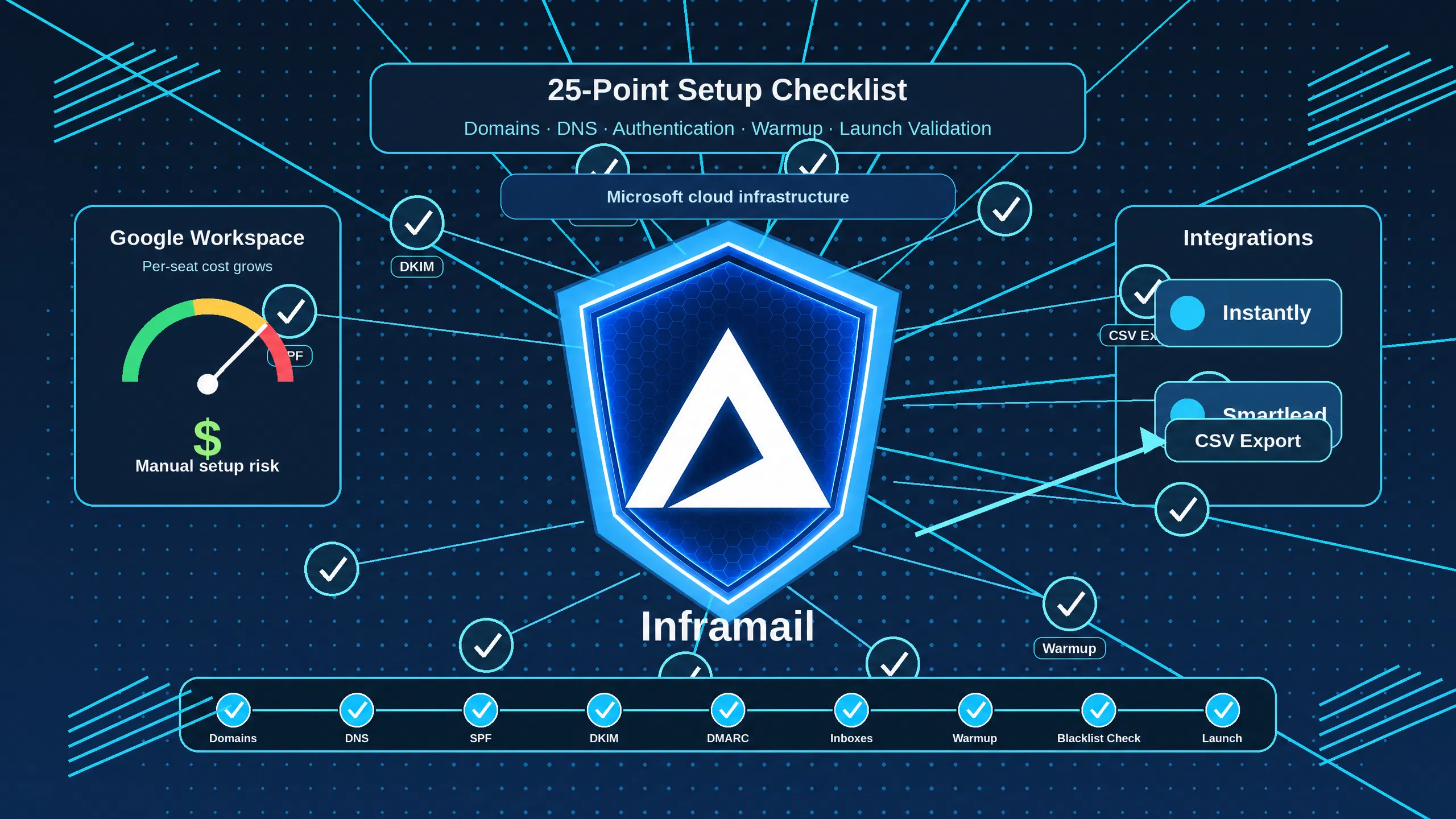
TL;DR: Technical infrastructure failures cause most first-campaign deliverability disasters, not email copy. A misconfigured DKIM key or missing SPF record sends emails to spam before a recipient reads a word. For agencies managing 50+ domains, manual DNS configuration across multiple registrars adds hours per client and introduces the errors that kill inbox placement. This checklist covers all 25 checkpoints from domain selection through final pre-launch testing. On pricing: Google Workspace Business Starter costs $350-420/month for 50 inboxes at $7-8.40 per seat. Inframail's Unlimited Plan costs $129/month plus approximately $34/month in domain costs at 50 inboxes, saving $187-257/month at that scale. Inframail automates SPF, DKIM, and DMARC configuration, provisions IMAP and SMTP credentials, and exports a CSV ready for Instantly or Smartlead. Run all 25 checkpoints before sending a single cold email.
Most deliverability advice tells you to rewrite your subject line. The real culprit is almost always a silent DNS propagation failure or a contaminated shared IP pool. For agencies managing multiple domains across clients, the technical setup stage is where inbox placement is won or lost, and a missed configuration step can damage campaign performance.
This 25-point checklist covers every stage from domain selection through final pre-launch testing, with the exact points where Inframail's automated infrastructure eliminates the most painful manual work.
Pre-purchase domain validation (checkpoints 1-5)
The domains you buy before you ever open a DNS panel determine your starting deliverability ceiling. These five checks happen before any configuration work begins.
Checkpoint 1: Select the right TLD. Industry practitioners commonly recommend .com, .co, .io, .net, or .ai for cold email domains, while avoiding TLDs like .xyz, .club, .link, .trade, and .stream that reportedly carry higher spam association with major inbox providers. Our infrastructure cost comparison shows how domain pricing stacks up across providers against Inframail's $5-$16 per year rate depending on TLD.
Checkpoint 2: Apply the two-domain strategy. Never send cold email from your primary company domain. Common practice is to purchase dedicated sending domains, such as variations of your brand like getcompanyname.com or companyname-hq.co. Using separate domains provides isolation from your main brand, though the degree of isolation depends on whether you use subdomains (which inherit partial reputation) or completely separate domains (which provide full isolation). If a sending domain gets blacklisted, separate domains prevent the flag from directly impacting your primary domain.
Checkpoint 3: Check current domain blacklist status. Before purchasing, run any domain through a blacklist checker to confirm it carries no active flags. Recycled domains carry inherited spam flags from previous registrants that no amount of warmup will fix. Tools like MXToolbox check real-time blacklist status across major lists.
Checkpoint 4: Confirm registrar settings. Common registrar security practices include enabling WHOIS privacy, setting auto-renew to active, and confirming the registrar lock is on. An expired domain mid-campaign is difficult to recover. While most registrars offer a grace period of 18-45 days where you can renew at the standard rate, and a subsequent redemption period where recovery is possible with additional fees, these recovery windows add risk and downtime during active campaigns.
Checkpoint 5: Calculate your bulk domain acquisition cost. For a 10-client onboarding with 5 domains per client, you need 50 domains. At Inframail's pricing of $5-$16 per domain per year depending on TLD, your annual domain cost runs approximately $250-$800. Factor this into your per-client infrastructure budget before signing the client contract.
DNS record configuration (checkpoints 6-12)
Most deliverability failures originate here. All seven DNS checkpoints must pass before a single warmup email goes out. Inframail's automated DNS setup video walks through configuration tools for 10+ inboxes.
Checkpoint 6: Publish a valid SPF record. SPF (Sender Policy Framework) is a DNS record that specifies which mail servers are authorized to send email on behalf of your domain. Your record should follow the format v=spf1 include:[your-provider-endpoint] ~all. Use ~all (soft fail) as the recommended default rather than -all (hard fail).
With DMARC deployed, soft fail and hard fail lead to the same security outcome, but hard fail can break legitimate mail. Critical rule: never publish two SPF records on the same domain. Multiple SPF records cause a PermError that fails authentication immediately. Per email authentication protocol documentation, DMARC requires SPF or DKIM to pass and align with the From domain before a message is considered authenticated.
Checkpoint 7: Generate and publish a 2048-bit DKIM key. DKIM (DomainKeys Identified Mail) adds a cryptographic signature to your emails that verifies the message was sent by the domain owner and was not altered in transit. If your DNS provider caps TXT record strings at 255 characters, split the DKIM key into multiple quoted strings within the same TXT record to avoid key truncation errors.
Checkpoint 8: Add a DMARC policy record. DMARC (Domain-based Message Authentication, Reporting, and Conformance) uses SPF and DKIM results to tell receiving servers what to do with failing messages. A common implementation path is to start with v=DMARC1; p=none; rua=mailto:dmarc-reports@yourdomain.com for initial monitoring, then transition to p=quarantine after reviewing your aggregate reports, and progress to p=reject once you have clean data confirming all legitimate mail passes authentication. Our infrastructure monitoring guide covers DNS authentication health checks and IP reputation monitoring in detail.
Checkpoint 9: Configure MX records. Even if you only use a domain for sending, you still need valid MX (Mail Exchanger) records. Without MX records, your domain cannot receive bounce notifications or reply emails, which flags the domain as suspicious to receiving inbox providers. For more on why this matters for cold email specifically, the B2B infrastructure setup walkthrough covers MX record configuration in context.
Checkpoint 10: Set up a custom tracking domain. A custom tracking domain (CTD) is a unique subdomain you own that handles open and click tracking instead of your sending tool's shared default domain. Using a shared tracking link ties your reputation to every other user on that platform. Configure a subdomain like track.yoursendingdomain.com and point it to your sending platform's CNAME record.
Checkpoint 11: Wait for DNS propagation to complete. Manual DNS changes can take variable time to propagate globally, depending on your registrar's TTL settings and DNS provider. With Inframail, DNS configuration is automated and instant, eliminating manual propagation delays. Propagation delays, duplicate records, and conflicting DKIM selectors account for the majority of first-time setup failures when configuring manually. Use WhatsMyDNS to confirm records are live worldwide before moving to validation.
Checkpoint 12: Run a Mail-Tester score check. Send a test email to a Mail-Tester address and aim for a score of 9+/10. Scores below that range indicate configuration issues worth investigating before scaling volume. Inframail reports a 9.5/10 on Mail-Tester and an 88% inbox rate via GMass testing. Our Maildoso deliverability comparison shows what those scores look like across infrastructure providers.
Inframail completes checkpoints 6-10 automatically the moment you purchase or migrate a domain. The platform configures SPF, DKIM, and DMARC records with no DNS panel access required.
"SPF, DKIM, DMARC, forwarding - all handled in literally seconds without me having to dig through docs or guess what records to add." - Verified user review of Inframail
Inbox provisioning and credential management (checkpoints 13-17)
Inbox creation on Google Workspace means manually creating each user, assigning a password, and paying $7-$8.40 per seat per month, which adds up to $1,400-$1,680/month at 200 inboxes. Inframail's unlimited inbox model costs $129/month whether you create 50 or 500 inboxes, and the platform provisions IMAP/SMTP credentials automatically. Our sending capacity guide helps you calculate the right plan for your volume.
Checkpoint 13: Create a maximum of 2-3 inboxes per domain. Capping inboxes per domain limits your blast radius so that if one inbox accumulates spam complaints, you lose only a fraction of sending capacity rather than the entire domain.
Checkpoint 14: Enable IMAP and SMTP access. Confirm that IMAP (port 993, SSL) and SMTP (port 587, TLS) are active for every inbox. Your sending platform authenticates via these protocols to deliver campaign emails. Inframail provisions these credentials automatically with each inbox created.
Checkpoint 15: Export credentials to CSV. Compile each inbox's email address, IMAP host, IMAP port, SMTP host, SMTP port, and password into a clean CSV file. Instantly.ai bulk import requires specific column headers, so confirm the format matches before uploading. Inframail generates this CSV directly from the dashboard, ready to import without manual formatting.
"After that, they give you a clean spreadsheet to upload to your cold email sequencer. Adding over 1,000 accounts literally took a couple of button clicks." - Verified user review of Inframail
Checkpoint 16: Verify secure SMTP connections. Confirm STARTTLS is active for SMTP connections on port 587. Sending over unencrypted connections triggers flags from modern inbox providers and fails most security audits.
Checkpoint 17: Validate IMAP connectivity from your sending platform. After importing credentials, trigger a test connection from Instantly or Smartlead and confirm each inbox shows as "Connected." For Smartlead integrations, our Smartlead connection guide covers every mapping field.
Warmup validation (checkpoints 18-21)
Skipping or shortening the warmup period is the fastest way to damage a domain. For agencies migrating existing inboxes, the post-migration warmup guide covers the exact re-warming protocol.
Table 1: 4-week warmup schedule
Week | Daily cold emails | Daily warmup emails | Target engagement |
|---|---|---|---|
1 | 0 | 5-10 | High open rate |
2 | 5-15 | 25-50 | High open rate |
3 | 20-30 | 30-50 | Strong reply rate |
4 (launch ready) | 30-40 | 30-50 | Sustained replies |
Checkpoint 18: Connect an external warmup tool. Inframail does not include a built-in warmup tool on standard plans, so you need an external provider like Lemwarm, Mailreach, or Warmbox. Verify the warmup tool has authenticated via IMAP/SMTP and shows active sending.
Agencies on Inframail's Done-for-You package get domain warmup included. Contact the team or check Inframail pricing for current package details.
Checkpoint 19: Enforce a minimum 14-21 day warmup period. Allow at least 14 days before starting cold outreach, with 21 days giving the strongest reputation foundation for high-volume campaigns. Sending from a cold domain too early produces immediate spam folder placement and lasting domain reputation damage that warmup cannot reverse. Our spam metrics guide covers how to read warmup health indicators accurately.
Checkpoint 20: Establish safe send velocity. Start at 5-10 warmup emails per day in week one and increase gradually following the table above. The optimal cold sending volume for fully warmed accounts is 30-50 emails per mailbox per day. Staying within that range keeps domain reputation intact as volume scales. Pushing past 100 emails per day per inbox can significantly reduce inbox placement and accelerate domain reputation damage.
Checkpoint 21: Verify warmup engagement rates. Your warmup tool should show strong open rates in the early weeks and healthy reply rates as you progress through weeks three and four. If engagement drops significantly below expected warmup patterns, the warmup pool is not seeding positive signals to the receiving inbox providers, and you should pause and troubleshoot before advancing the send schedule.
Sending tool integration and final pre-launch validation (checkpoints 22-25)
Checkpoint 22: Import credentials and set per-inbox limits. After uploading the Inframail CSV to Instantly or Smartlead, set hard daily limits of 30-40 cold emails per inbox. This keeps total daily volume well under the threshold that triggers ESP rate limiting. For context on healthy campaign metrics, see our bulk email best practices guide.
Checkpoint 23: Enable automatic bounce management. Configure your sending platform to pause any inbox automatically if the hard bounce rate exceeds 2-3%. Bulk sender requirements from Google and Yahoo mandate that senders keep spam complaint rates below 0.3%, with a recommendation to stay under 0.1%. A bounce rate above 2% stains sender reputation and puts future emails at risk of spam folder placement.
Checkpoint 24: Run a GlockApps inbox placement test. Send a test email to a GlockApps seed list and verify placement rates of 90%+ across Gmail, Yahoo, and Outlook inboxes. GlockApps checks your sending IP against 50+ blocklists, verifies SPF, DKIM, and DMARC authentication, and reports exactly where your email lands at each provider. Inframail provides 1 dedicated US-based IP on the Unlimited Plan and 3 on the Agency Pack, isolating your sending reputation from all other users. The dedicated vs. shared IP breakdown covers the deliverability mechanics in detail.
Checkpoint 25: Verify IP and domain blacklist status. Check your sending IPs and domains against Spamhaus and Barracuda, the primary blocklists that major inbox providers query during SMTP evaluation, per blacklist monitoring standards. Inframail's blacklist monitoring dashboard runs these checks automatically and submits delisting requests when a domain is flagged, removing the manual weekly sweep from your ops workload. Our Microsoft blacklist resolution guide covers the specific delisting process for Outlook-related flags.
Cost comparison: Google Workspace versus Inframail at scale
You can run this checklist with any infrastructure provider, but executing it manually on Google Workspace's per-seat pricing compresses your margin as client count grows. The table below compares total cost of ownership using Inframail pricing versus Google Workspace Business Starter at $7/month per seat on annual billing.
Table 2: Total cost of ownership comparison
Inbox count | Google Workspace cost | Inframail platform | Domain costs (est.) | Inframail total | Monthly savings |
|---|---|---|---|---|---|
50 | $350/month | $129/month | ~$34/month | $163/month | $187/month |
100 | $700/month | $129/month | ~$68/month | $197/month | $503/month |
200 | $1,400/month | $129/month | ~$137/month | $266/month | $1,134/month |
For agencies scaling beyond 50-100 inboxes, Google Workspace infrastructure costs grow linearly at $7 per seat while Inframail's Unlimited Plan stays flat at $129/month plus domain costs. The Agency Pack at $228/month annually ($327/month monthly) adds two additional dedicated IPs. The infrastructure cost difference is what determines whether scaling from 28 to 40 clients protects or compresses your margin.
For an agency managing 28 clients at 65 inboxes per client, that is 1,820 seats. On annual billing, that comes to $12,740/month in Google Workspace infrastructure costs at that portfolio size.
For a full end-to-end setup walkthrough, the ultimate cold email infrastructure guide and the complete cold email infrastructure tutorial both cover domain-to-first-send configuration in video format.
Common configuration errors and how to resolve them
These three blockers account for the majority of time-consuming support issues on first setup.
SPF PermError from too many DNS lookups: Each include: directive in your SPF record triggers a recursive DNS lookup. Exceed 10 lookups and receiving servers return a PermError that automatically fails authentication. Audit your SPF record, remove includes for services you no longer use, and replace static IP sources with direct ip4: directives.
DKIM key truncation: Some DNS providers cap TXT record strings at 255 characters. Long DKIM keys get silently cut off at the character limit, producing a "DKIM signature not valid" error. Fix this by splitting the key into two quoted strings within the same TXT record, which DNS panels then concatenate automatically during lookup.
DNS propagation check too early: With Inframail's automated DNS configuration, records are provisioned instantly. When configuring DNS manually with other providers, propagation can take time for global distribution. Use WhatsMyDNS to confirm the record is live in all regions before running any validation tests.
For a broader set of spam avoidance rules that keep domains clean long-term, the 32 ironclad anti-spam rules guide covers infrastructure-level discipline in detail. For CAN-SPAM technical compliance, our cold email legal guide covers the obligations without the legal jargon.
The platform automates DNS configuration, provisions unlimited inboxes on dedicated IPs, and exports IMAP credentials in a CSV ready for Instantly or Smartlead, all for $129/month on the Unlimited Plan. Sign up to Inframail and get started today.
FAQs
How much does it cost to set up 50 cold email inboxes on Google Workspace versus Inframail?
Google Workspace Business Starter costs $350/month for 50 seats at $7 per seat on annual billing, or up to $420/month on monthly billing. Inframail costs $129/month for the platform fee plus approximately $34/month in amortized domain costs at 50 inboxes, saving $187-257/month.
What is the minimum warmup period for a new cold email domain?
Allow a minimum of 14 days before sending cold outreach, with 21 days recommended for best inbox placement results. Sending campaigns before completing warmup produces immediate spam folder placement and lasting reputation damage.
How many email accounts should I create per sending domain?
Create a maximum of 2-3 email accounts per domain. This limits your risk so that a flagged inbox affects a fraction of your sending capacity rather than the entire domain.
What inbox placement rate should I expect from a properly configured setup?
A correctly configured domain with completed warmup should achieve 85-90% inbox placement. Inframail reports an 88% inbox rate via GMass testing and a 9.5/10 score on Mail-Tester for properly configured domains.
Is Microsoft-based email infrastructure as reliable as Google Workspace for cold email deliverability?
Inframail runs on Microsoft's cloud at $129/month for unlimited inboxes, saving $187-257/month per 50 inboxes versus Google Workspace. Microsoft-based infrastructure can produce a lower inbox placement rate for Gmail recipients. InboxKit reports a 5-7 percentage point gap (78-85% versus 85-92% for Google Workspace), and notes the gap narrows with warmup but does not fully close. Puzzle Inbox finds properly authenticated domains perform equivalently under Google's current anti-abuse systems. If Gmail placement is a hard requirement, our Maildoso alternatives comparison covers all options.
Key terms glossary
SPF (Sender Policy Framework): A DNS TXT record that lists the mail servers authorized to send email on behalf of your domain. Receiving servers check this record during delivery to verify the sending source is legitimate.
DKIM (DomainKeys Identified Mail): An email authentication method that attaches a cryptographic signature to outgoing messages. The receiving server verifies the signature against the public key published in your DNS, confirming the message was not altered in transit.
DMARC (Domain-based Message Authentication, Reporting, and Conformance): A policy layer that uses SPF and DKIM results to instruct receiving servers on how to handle failing messages, with options ranging from monitoring only (p=none) to rejection (p=reject).
Custom tracking domain: A subdomain you own that handles email open and click tracking in your sending tool. It replaces the default shared tracking link and protects your sender reputation from other users on the same platform.
Dedicated IP address: An internet protocol address assigned exclusively to your sending infrastructure. Your sending reputation stays completely isolated from other senders, unlike shared IP pools where another user's spam complaints can affect your deliverability.