
7 Reputation Warning Signs That Precede a Cold Email Deliverability Crash
Learn the seven measurable sender reputation warning signs that can precede a cold email deliverability crash, with thresholds, weekly monitoring workflows, and recovery actions for agency teams.
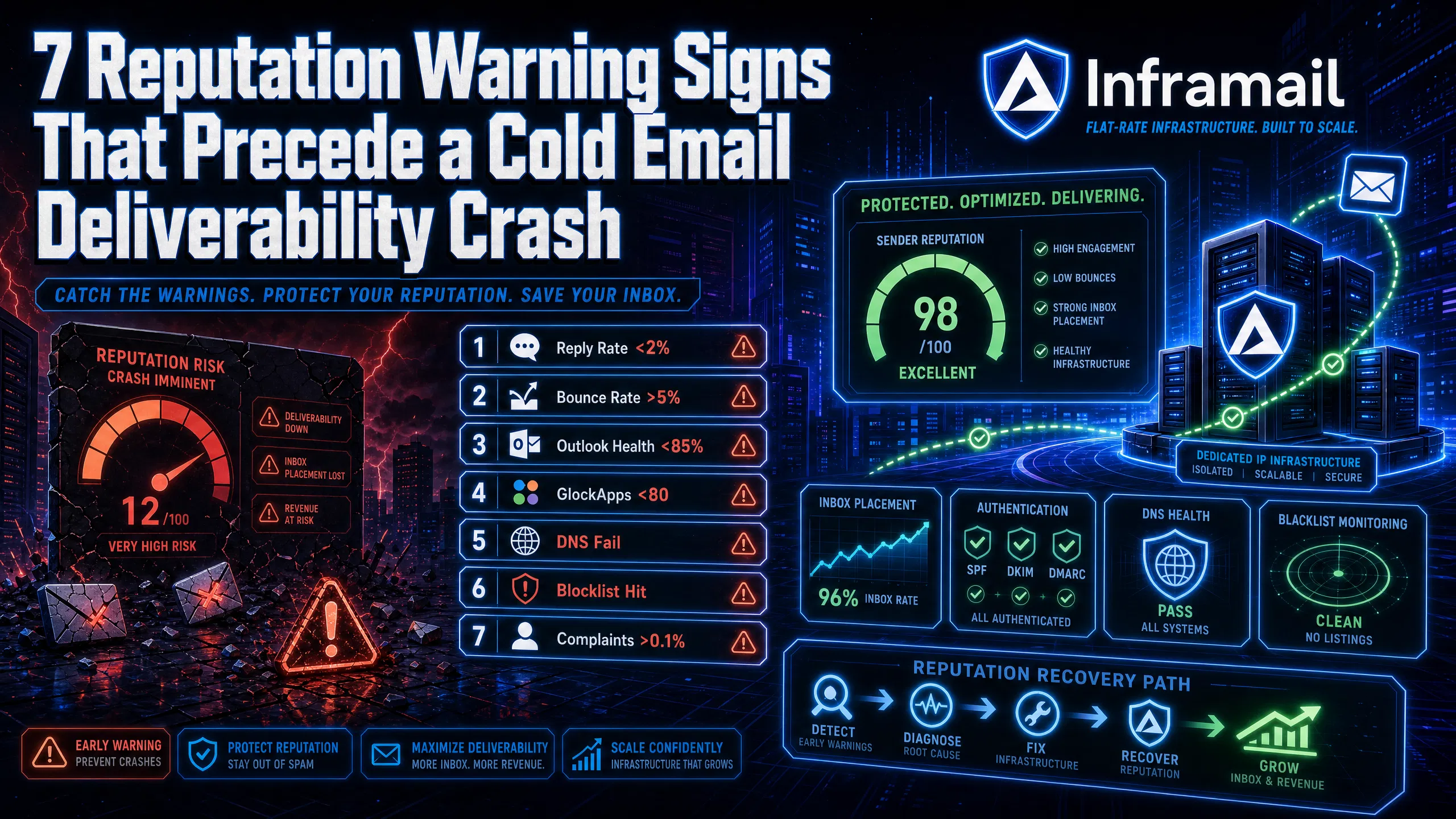
TL;DR: A reply rate drop often signals the final stage of a deliverability decay that may have started days earlier. This guide covers seven measurable warning signs that can precede a sender reputation crash, including thresholds that trigger immediate action. By monitoring these metrics weekly and running campaigns on dedicated IP infrastructure, you protect client accounts before a crash forces a recovery that can take weeks to months and risks client churn.
Deliverability crashes always send warning signals days before reply rates tank. The campaign managers who catch them early save client accounts. Those who miss them spend weeks pausing sends, delisting domains, and explaining to agency owners why booked meeting volume dropped.
This guide covers seven specific, measurable thresholds to monitor weekly, the tools to track them, and the infrastructure decisions that prevent contamination before it starts.
ESPs do not update sender reputation in real time. Google calculates Gmail reputation using a rolling average methodology, and Postmaster Tools data lags behind after a send. A bad campaign run two weeks ago is still pulling down your score today.
This is the 7 to 14 day lag that blindsides campaign managers. High deliverability this week does not mean your infrastructure is healthy. It means recent sends haven't yet accumulated enough negative signals to shift the rolling average. The underlying erosion may already be underway.
ESPs track three primary signals: sending patterns (volume spikes, irregular cadence), authentication alignment (SPF, DKIM, and DMARC records), and engagement behavior (opens, replies, spam complaints). When these signals degrade, inbox placement drops before your reply rate data shows the problem. For a breakdown of how ESP filtering works in 2025, Nick Abraham's deliverability breakdown covers the mechanics clearly.
Proactive weekly monitoring matters more than reactive troubleshooting. By the time a client notices meeting volume has dropped, you're already well into a reputation decay cycle that takes months to reverse.
Reply rate is one of the earliest behavioral indicators that inbox placement has shifted. The sections below explain how to read a dip, rule out false positives, and take corrective action.
Interpreting your reply rate dip
A 2% reply rate floor is a key behavioral signal of inbox placement degradation for B2B cold email. When reply rates drop below 2%, a meaningful share of your volume is landing in spam rather than the primary inbox. To isolate the cause, compare open rates against reply rates across identical copy on different domains. If open rates stay consistent but replies collapse, the problem is copy or targeting. If both metrics drop simultaneously across all active domains, deliverability is the root cause.
Spotting false reply rate dips
Seasonal dips around major holidays are predictable and recoverable. True reputation decay shows up as a sustained decline across multiple send days and multiple domains. Many campaign managers track a 7-day rolling average reply rate per domain in their Instantly or Smartlead dashboard. A genuine deliverability problem will show a consistent downward trend rather than a single-day drop tied to a calendar event.
Immediate steps for inbox recovery
Pause the affected campaign immediately.
Run a Mail-Tester check on the sending domain to confirm DNS alignment.
Run a GMass inbox placement test to check the split between primary inbox, spam, and promotions tab.
If inbox placement drops significantly, lower daily send volume to 10 to 15 emails per inbox and hold for 72 hours before resuming.
Bounce rate measures how many of your emails fail to reach the recipient's server. Understanding the types of bounces and the thresholds that signal risk helps you act before the damage compounds.
Hard vs. soft bounces defined
A hard bounce is a permanent delivery failure because the recipient address is invalid, non-existent, or has blocked your domain. A soft bounce is a temporary failure caused by a full inbox or a server issue. Hard bounces damage your reputation faster than soft bounces. ESPs interpret hard bounces as proof you're sending to unverified or purchased lists, which is one of the fastest ways to damage domain reputation.
What a 5% bounce rate signals
The acceptable range for a healthy B2B cold email list sits below 2%. Rates between 2% and 5% indicate a list quality problem that needs immediate attention. Above 5%, most sending platforms suspend your account or restrict daily volume, and your sender score takes lasting damage.
How to fix spiking bounce rates
Real-time email validation before sending is the standard fix. Tools like ZeroBounce and NeverBounce verify addresses before they hit your sequence. Our comparison of ZeroBounce and NeverBounce covers which performs better for high-volume cold outreach lists.
Outlook-hosted inboxes represent a significant share of B2B contacts and operate under a separate reputation system from Gmail. Monitoring placement within that network requires a different approach.
Outlook vs. Gmail filtering differences
Google Postmaster Tools tracks reputation at the domain level and provides granular data on authentication status, spam rate trends, and delivery errors. Microsoft's Smart Network Data Services (SNDS) operates at the IP level and provides data on IP reputation, blocklist status, and complaint rates from within the Outlook network. SNDS provides less granular data than Postmaster Tools, but an IP flagged by SNDS causes deliverability failures across Outlook, Hotmail, and Live addresses, which make up a significant share of B2B inboxes.
Weekly checks for Outlook deliverability
Run a GlockApps seed test that includes Microsoft-hosted seed addresses regularly. If your Outlook inbox placement falls materially below your Gmail placement, check SNDS for IP-level flags before assuming a domain authentication issue. Placement gaps between providers often point to an IP reputation problem rather than a DNS misconfiguration.
Fixing low Outlook deliverability
Running on Microsoft-based dedicated IPs (rather than shared pools) directly addresses SNDS reputation issues because your sending behavior is the only behavior Microsoft's systems associate with that IP. Our guide on resolving Microsoft blacklist issues walks through the full delisting and prevention process.
GlockApps provides placement data across multiple providers in a single test. The sections below cover how scores are calculated, what causes variance, and how infrastructure affects results.
How GlockApps grades provider performance
GlockApps uses a network of seed email addresses across major providers to test where your messages actually land. The platform calculates four rates: inbox rate (the target), tabs rate (Gmail Promotions), spam rate, and missing rate (messages blocked or not delivered at all). Inbox placement below 80% means more than 1 in 5 of your emails is landing somewhere other than the primary inbox, which GlockApps treats as poor deliverability. Many operators run a test every Monday morning before the week's campaigns go live.
Why domain scores vary by provider
Shared IP pools produce score instability because your placement depends partly on every other sender using the same IP range. One high-volume sender on your shared pool can trigger a spam trap hit, and that hit degrades reputation for all senders on the range. This is the "neighbor noise" mechanism: mailbox providers apply worst-sender reputation to entire IP pools, not just the offending account.
Dedicated IPs isolate your score. Inframail's Unlimited Plan includes 1 dedicated US-based IP, and the Agency Pack includes 3, so your GlockApps scores reflect only your sending behavior. The dedicated IP vs. shared IP video from Inframail's founder Kidous Mahteme explains the mechanics of this isolation in detail.
Mail-Tester scores surface authentication issues that inbox providers use when filtering messages. The sections below cover how to read those scores and fix the underlying record errors.
Troubleshooting DNS alignment failures
SPF (Sender Policy Framework), DKIM (DomainKeys Identified Mail), and DMARC (Domain-based Message Authentication, Reporting, and Conformance) must all align correctly for your emails to pass authentication checks. SPF specifies which mail servers can send on behalf of your domain. DKIM adds a cryptographic signature to each message. DMARC ties both together and tells receiving servers how to handle failures.
Authentication failures happen most often during manual DNS setup when records are copied across multiple domains and a single character error goes undetected. The second common failure is exceeding the SPF 10-lookup limit, which breaks authentication silently and shows no obvious error until you run a Mail-Tester check.
What Mail-Tester scores tell you
A score of 8/10 or above indicates clean authentication across all layers. Scores between 7/10 and 8/10 are a warning threshold, suggesting configuration issues worth investigating before your next send. Anything below 7/10 means one or more authentication layers are failing, and receiving systems may route your emails to spam after checking authentication.
Fixing DNS records to boost inbox rates
Inframail's automated DNS configuration provisions SPF, DKIM, and DMARC records for every domain without manual panel access. The SPF, DKIM, DMARC 2-minute setup video shows the full configuration completing for multiple inboxes in just a few minutes.
Blocklist status is one of the most direct indicators of IP or domain reputation damage. The sections below cover which lists to check, how IP type affects exposure, and the steps to request removal.
Routine scans for domain blacklisting
The three blocklists that cause the most damage to B2B cold email campaigns are:
Spamhaus: Spamhaus protects over 4 billion mailboxes and a listing here blocks delivery to Microsoft, Yahoo, Apple iCloud, and most business email providers that query Spamhaus data. Delisting requires submitting a request and demonstrating the issue is resolved, which can take hours to several days.
Barracuda: Barracuda typically processes removal requests within 12 hours with a valid explanation. Repeat offenders and chronic listings may take longer or face denial.
SpamCop: SpamCop bases listings on reports and expires them automatically. Listings expire within 24 hours if spam reports stop coming in. Check your sending IPs against all three using MXToolbox Blacklist Check at minimum once per week.
Dedicated IP benefits for deliverability
Shared IP pools work like carpool lanes where one bad driver gets everyone ticketed. One bad actor spamming from the same IP range gets the entire range flagged, and your domains absorb the reputation damage even though your sending behavior was clean. Dedicated IPs work like private lanes where your behavior alone determines reputation, so a blacklist event requires your own sending to trigger it, not a neighbor's.
Steps to request domain removal
Identify which blocklist flagged the IP using MXToolbox.
Diagnose the triggering behavior (high complaint rate, spam trap hit, or volume spike).
Resolve the root cause before submitting a delisting request.
Submit directly through the blocklist operator's removal portal.
Pause all sends from the affected domain until delisting is confirmed and placement improves.
Our guide on cold email infrastructure monitoring covers the full alert and response workflow for agencies managing multiple client domains.
Spam complaint rate is the metric inbox providers weight most heavily when making routing decisions. The sections below cover how providers measure it and which sending behaviors push the rate above threshold.
How ESPs calculate complaint metrics
A complaint rate of 0.1% means 1 spam report for every 1,000 emails sent. Google's published threshold is below 0.1%, with senders who exceed 0.3% blocked from February 2024. A safer internal operating target is below 0.08%, which gives you a buffer before Google's enforcement threshold is reached. If you're sending 10,000 emails per day across a client's domains and see more than 10 spam reports, your complaint rate is at threshold and needs immediate attention.
Microsoft tracks complaint rates through SNDS at the IP level but does not publish a single hard threshold with the same clarity. In practice, repeated complaint patterns across multiple campaigns cause Microsoft to throttle your messages and route them to junk folders before any formal block is applied.
Keeping complaint rates under 0.1%
Three behaviors drive complaint rates above threshold:
Sending to disengaged lists without re-engagement filtering. Remove contacts who haven't opened or replied in 90 or more days before reloading them into active sequences.
Missing or buried unsubscribe options. Every cold email should include a clear one-click opt-out. Contacts who can't easily unsubscribe click "Report Spam" instead.
Sending too aggressively on new domains. Keep daily send volume to 30 to 50 emails per inbox per day on a fully warmed domain, with a maximum of 2 to 3 inboxes per domain.
For a current operational checklist, Inframail's 32 rules to avoid spam covers the full set of behaviors that keep complaint rates low in 2025.
Tracking all seven warning signs requires a consistent weekly cadence rather than ad hoc checks when something breaks. The table below gives you the metrics, acceptable ranges, and the action required at each stage.
Table 1: Weekly deliverability scorecard
Metric | Acceptable range | Warning threshold | Critical action |
|---|---|---|---|
Reply rate | Above 3% | 2% to 2.9% | Below 2%: pause campaign, run inbox placement test |
Hard bounce rate | Below 2% | 2% to 5% | Above 5%: stop sends, run list through email validation |
Outlook inbox placement | Above 85% | 75% to 85% | Below 75%: check SNDS, review IP reputation |
GlockApps inbox rate | Above 80% | 70% to 80% | Below 70%: audit DNS, reduce send volume, test again |
Mail-Tester score | 8/10 or above | 7/10 to 8/10 | Below 7/10: fix DNS misconfiguration before next send |
Blacklist status | Clean on major lists | Any flag detected | Immediate pause, diagnose, submit delisting |
Spam complaint rate | Below 0.1% | 0.1% to 0.2% | Above 0.2%: clean list, reduce daily volume |
How to set up proactive alert triggers
Smartlead's Bounce Auto Pause feature monitors bounce rates continuously and pauses a campaign automatically when the rate exceeds your configured threshold, then sends a webhook notification with full campaign details. Many operators set their bounce alert at 2% to catch problems before they reach the 3% level where some platforms begin issuing warnings.
In Instantly, configure reply rate monitoring at the campaign level. A sustained reply rate below 2% over your last 7 days of sends should trigger a Slack alert or email notification. Catching the drift at 1.8% gives you time to diagnose and correct before the client notices the drop in meetings booked.
Pause or pivot: correcting email issues
When a single domain shows warning signs but others in the same campaign are healthy, the problem is domain-specific. Pause that domain, diagnose DNS alignment, and run a fresh GlockApps test before resuming.
When all domains in a campaign degrade simultaneously, the problem is infrastructure-level: either the shared IP pool is contaminated, list quality is poor across all segments, or sending volume spiked above safe limits. In this case, pause the full campaign, run list verification, and audit your sending platform's IP assignment.
Real-time detection depends on consistent monitoring across the right tools and a defined response process. The sections below cover the weekly audit cadence, how to read combined signals, and the steps for restoring a damaged sender domain.
Weekly cadence for deliverability checks
A consistent Monday morning audit before any campaign volume goes live covers the full scorecard:
Run Mail-Tester on one inbox per client domain (rotate domains weekly to cover the full portfolio over a month).
Run a GlockApps seed test for each active client campaign.
Check MXToolbox blacklist status for all sending IPs.
Pull the prior week's reply rate, open rate, and bounce rate from Instantly or Smartlead.
Check Google Postmaster Tools for any domains with flagged spam rates.
The Inframail guide on healthy campaign metrics covers the specific numbers to target at each stage of a campaign.
Steps to restore your sender domain
IP reputation recovers in 2-4 weeks with corrected behavior, but domain reputation takes 6 to 12 weeks to rebuild. The recovery protocol:
Pause all sends immediately. No volume during week one.
Fix the root cause: DNS misconfiguration, list quality issue, or complaint rate spike.
Begin re-warming at 5 to 10 emails per day in week one, scaling to 25 to 50 per day by week two.
Send only to your highest-quality, most-engaged segments during warmup to generate positive engagement signals.
Run weekly GlockApps tests throughout the recovery period to confirm inbox placement trends upward before scaling volume. Our inbox warmup guide for Inframail walks through this ramp schedule in detail.
Infrastructure that isolates risk before warning signs appear
The most cost-effective way to manage all seven warning signs is to start with infrastructure that prevents shared-pool contamination. Maildoso and Mailforge run shared IP pools where neighbor behavior degrades your placement rates regardless of your own sending hygiene. Inframail's dedicated US-based IPs (1 on the Unlimited Plan at $129/month, 3 on the Agency Pack at $327/month) mean every metric in the weekly scorecard above reflects only your campaigns. For a full breakdown of per-inbox costs, setup times, and hidden fees, our cold email infrastructure costs comparison covers 7 platforms side by side.
Table 2: Infrastructure cost comparison at 50 inboxes
Provider | Monthly inbox cost | Domain cost (50 domains) | Monthly total |
|---|---|---|---|
Inframail Unlimited | $129/month flat | ~$34/month amortized | ~$163/month |
Google Workspace | $350 to $420/month (50 seats at $7 to $8.40 each) | Purchased separately (~$34/month amortized at ~$8/domain/year) | ~$384 to $454/month |
Maildoso | ~$113 to $166/month | Included | ~$113 to $166/month (warmup included) |
At 50 inboxes, switching from Google Workspace to Inframail typically saves over $200 per month, or more than $2,400 annually, before accounting for reduced time spent on manual DNS configuration. At 200 inboxes, that infrastructure gap grows to over $1,100/month in savings.
"Inframail has been absolute gold in terms of delivering a great customer experience, and allowing me to spin up cold email infrastructure at scale for my clients as easily and fast as possible" - Verified user review of Inframail
Sign up to Inframail and get started today, or book a call with an Inframail deliverability consultant to audit your current infrastructure and identify which of the seven warning signs your domains are already showing.
How long does domain warmup take before launching a campaign?
Domain warmup takes 2 to 4 weeks minimum for new domains with no sending history, during which you must gradually increase sending volume from 1 to 50 emails per day using an external warmup tool like Warmbox or Lemwarm. Launching before completing warmup increases the risk of elevated complaint rates on a domain with no positive sending history to buffer the signal.
What is the difference between a dedicated IP and a shared IP pool?
A dedicated IP isolates your sending reputation so your behavior alone determines your inbox placement rate, while a shared IP pool groups your domains with other senders whose complaint rates, bounce rates, or spam trap hits affect your deliverability directly. Warning sign #4 covers the practical impact on placement in detail.
How many email inboxes can I safely run per domain?
The safe limits are covered in warning sign #7: a maximum of 2 to 3 inboxes per domain, with each inbox sending no more than 30 to 50 cold emails per day on a fully warmed domain. Exceeding this volume per domain, particularly in the first 60 days of a domain's life, accelerates reputation decay and raises complaint rates above threshold.
What should I do if my sending IP gets blacklisted?
Pause all active campaigns on that IP immediately, identify the root cause (high complaint rate, spam trap hit, or list hygiene failure), resolve the issue, and submit a delisting request through the blocklist operator's removal portal. Do not resume sending until the delisting is confirmed and a fresh GlockApps test shows inbox placement back above 80%.
Does Inframail include a built-in email warmup tool?
No, Inframail does not include a built-in warmup tool, so you need an external service like Warmbox or Lemwarm to warm inboxes before launching campaigns. Users on Inframail's Done-for-You Email Campaign Setup package get free domain warmup included as part of that service tier.
How does Google's spam complaint threshold compare to Microsoft's?
Google enforces the thresholds described in warning sign #7, with senders who exceed 0.3% complaint rate blocked. Microsoft monitors complaint rates through SNDS at the IP level but does not publish equivalent hard thresholds. Operators should target complaint rates below 0.08% across both providers to maintain a safety buffer.
SPF (Sender Policy Framework): A DNS record that specifies which mail servers are authorized to send email on behalf of your domain. Missing or misconfigured SPF records are one of the most common reasons cold emails fail authentication checks.
DKIM (DomainKeys Identified Mail): An email authentication method that adds a cryptographic digital signature to each outbound message, proving the email was not altered in transit and came from an authorized server.
DMARC (Domain-based Message Authentication, Reporting, and Conformance): A protocol that uses both SPF and DKIM results to verify email authenticity and tells receiving servers whether to deliver, quarantine, or reject messages that fail authentication.
Hard bounce: An email that is permanently undeliverable because the recipient address is invalid, non-existent, or has permanently blocked your domain. Hard bounce rates above 2% are a direct signal of list quality failure.
Soft bounce: A temporary delivery failure caused by a full recipient inbox or a temporary server outage. Soft bounces do not permanently damage sender reputation, but repeated soft bounces to the same address indicate a dead contact worth removing.
SNDS (Smart Network Data Services): A Microsoft portal that provides senders with data about the health and reputation of their sending IPs within the Outlook, Hotmail, and Live email network. SNDS operates at the IP level, unlike Google Postmaster Tools which tracks reputation at the domain level.
Seed list test: A deliverability testing method where a tool like GlockApps sends your email to a network of test addresses across major providers (Gmail, Outlook, Yahoo) and reports what percentage landed in the primary inbox, spam folder, or tabs.
Inbox placement rate: The percentage of sent emails that land in the recipient's primary inbox rather than spam, promotions, or junk folders. Many B2B cold email practitioners target 80% or above across all tested providers.